PSEB 6th Class Computer Notes Chapter 6 Hardware and Software

This PSEB 6th Class Computer Notes Chapter 6 Hardware and Software will help you in revision during exams.

PSEB 6th Class Computer Notes Chapter 6 Hardware and Software

Introduction:
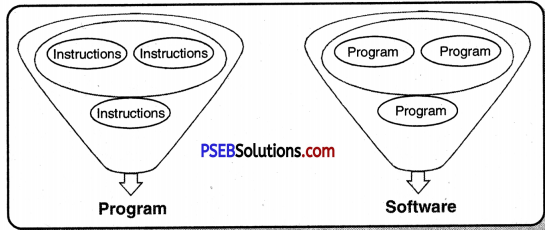
A Computer is made up of two parts: hardware and software. Both the parts are necessary for working of computer system. Hardware are the physical components of the computer and the instructions given to the computer in the form of program is called software. This software is stored on some hardware. So software makes the hardware workable and hardware stores the software.

Hardware
Hardware are the physical components of a computer system. It includes all the physical components which can be touched and which can be seen. Examples of some hardware are keyboard, mouse, printer, monitor and CPU. Different types of hardware devices are used for different purposes.

Features of Hardware
Following are the features of hardware:

  • Hardware can be touched and felt.
  • Hardware occupies space.
  • Hardware has weight.

There are different types of hardware used for computer systems:
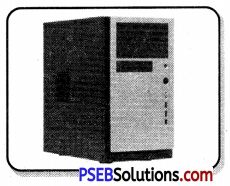
System Unit: The system unit is also known as the Central Processing Unit of computer system. This unit acts as the brain of the computer. It includes the essential components such as motherboard, processor, RAM, hard disk, CD-ROM etc. Normally these devices are packed in a metallic or plastic case known as a system case or cabinet.
PSEB 6th Class Computer Notes Chapter 6 Hardware and Software 1

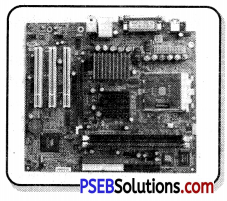
Motherboard: Motherboard is a board which holds all the components together. This board is also known as a printed circuit board. All the components of the computer system are connected to this directly or using some wires.
PSEB 6th Class Computer Notes Chapter 6 Hardware and Software 2

PSEB 6th Class Computer Notes Chapter 6 Hardware and Software

The main components connected to the motherboard are:

  • Hard Drive: Hard drive or hard disk is the main storage device of a computer. It is used to store data permanently. The main software like operating systems are also placed on this hard disk.
  • Video Card: This card is used to display the output properly on a monitor.
  • Processor: Processor processes all the instructions given to the computer. It performs all the Arithmetic and logical unit operations. It controls all the activities of the computer also.
  • Fan: The computer gets heated when it is used. So a fan is placed in the CPU to keep it cool.
  • RAM: RAM is the primary memory of computer. It is also known as Random Access Memory. All the data and instructions are loaded in this memory before processing. This memory is a volatile type of memory. It means the data gets lost when the computer is switched off. The computer cannot work without Random Access Memory.
  • Power Supply: This unit is responsible for giving power to all the components of the computer.
  • CD/DVD: This device is used to play, read and record data and instructions on CD or DVD.

Important Points for Taking Care of Hardware
If the hardware components of the computer are not taken care of, they get spoiled. It is very necessary to take care of these components.

The following things should be kept in mind when using the hardware:

  • Keep all the parts of the computer clean.
  • Cover it after use.
  • Do not pull cables or computer Parts.
  • Press keyboard keys gently.
  • Do not eat in the Computer Room.
  • Keep Hardware in the proper manner.
  • Keep your shoes outside the computer lab.
  • Handle different parts of the computer in a proper way.
  • Use soft cloth or a brush to clean the computer.
  • Do not clean the equipment while the computer is turned on.

Software:
Software is a set of instructions or programs which are used to make a computer functional. Physically software is a collection of programs. These programs are made for various purposes. This software is normally stored on a secondary storage device. The software can not be touched. Each type of software helps the computer to perform a particular operation.

Features of Software
The following are the main features of software:

  • Software have no weight.
  • We cannot touch the software.
  • A software makes a hardware functional.
  • Software is stored on hardware.

PSEB 6th Class Computer Notes Chapter 6 Hardware and Software 3

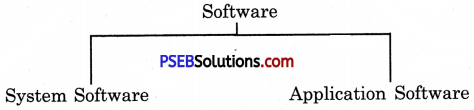
Computer software can be divided into the following categories:

  • System Software
  • Application Software

PSEB 6th Class Computer Notes Chapter 6 Hardware and Software 4

System Software
System software can be defined as a set of programs which are necessary for functioning of the computer itself. This program directly contacts the computer hardware and gets the work done from that hardware. Without a system software computer cannot work. System software helps to read the data from input devices and transfer the processed information to output devices. This software acts like a computer manager of computer.

The main types of this software are:

  • Operating system
  • Language translators
  • Utility programs

The software is difficult to design and is also costly. These softwares are mainly designed by highly experienced people.

Application Software:
Application software can be defined as a software that provides a solution to a specific problem of the user. This software is not necessary for working on a computer. This software do not directly contact the hardware. This software works with the help of system software. One application software is developed for some specific purpose only. There are many types of application software available. The application software are Word processor, Spreadsheet solutions, presentation software, pick packages.

PSEB 6th Class Computer Notes Chapter 6 Hardware and Software

Difference Between System Software and Application
Both system and application software are types of software. They are related to each other. They also have many differences. Some of the differences are given below:

System Software Application Software
(i) It is necessary for functioning of computer. (i) Application software is not necessary for functioning of computer.
(ii) This software is complex in nature. (ii) Application software is not as complex as system software.
(iii) System software are costly. (iii) Application software are not costly.
(iv) This software is developed by highly experienced person only. (iv) This software can be developed by experienced person.
(v) Computer cannot work without system software. (v) Computer can work without application software.
(vi) System software are bigger in size. (vi) Application software are normally smaller in size.
(vii) Examples of system software are Operating Systems, Language translator etc. (vii) Examples of application software are Word processor, Spread­sheet, Graphic Solution etc.

Relationship/Differences between Hardware and Software
A Computer system is made up of hardware and software. Both are necessary for a computer system. Without software hardware cannot work. It is just like a mechanical device without software. A software cannot be developed or stored without the help of hardware. Hardware is also controlled by software so we can say that hardware and software are both related to each other. There are many differences between these two also. Some of the differences are given below:

Hardware Software
(i) Hardware is a physical quantity. (i) Software is not a physical quantity.
(ii) Hardware can be touched. (ii) Software cannot be touched.
(iii) Hardware cannot work without software. (iii) Software cannot be stored without hardware.
(iv) Hardware is developed by engineers. (iv) Software is developed by developers.
(v) There are four types of hardware. (v) There are two types of software.
(vi) It could be costly as well as cheaper (vi) Software is usually costly.

PSEB 7th Class Maths Solutions Chapter 1 Integers Ex 1.2

Punjab State Board PSEB 7th Class Maths Book Solutions Chapter 1 Integers Ex 1.2 Textbook Exercise Questions and Answers.

PSEB Solutions for Class 7 Maths Chapter 1 Integers Ex 1.2

1. Find the value of:
(a) 32 + 15
(b) 17 + (-18)
(c) (-25) + (21)
(d) (-8) + (-11)
(e) (-13) + (21)
(f) (-19) + (0)
(g) (-85) – (-10)
(h) (15) – (6)
(i) (45) – (-27)
(j) (-62) – (52)
Answer:
(a) 32 + 15 = 47
(b) 17 + (-18) = – 1
(c) (-25) + (21) = -4
(d) (-8) + (- 11) = – 19
(e) (-13) + (21) = 8
(f) (-19) + (0) = – 19
(g) (- 85) – (- 10) = – 85 + 10 = – 75
(h) (15) – (6) = 9
(i) (45) – (- 27) = 45 + 27 = 72
(j) (- 62) – (52) = – 62 – 52 = – 114

2. Solve the following :

Question (a).
(-3) + 7 + (-8)
Answer:
(- 3) + 7 + (- 8) = (- 3) + (- 8) + 7
= – 11 + 7
[∵ (- 3) + (- 8) = – 11] = – 4

Question (b).
(- 2) – (- 1) – (4)
Answer:
(- 2) – (- 1) – (4)= – 2 + 1 – 4
= (- 2) + (- 4) + 1
= – 6 + 1 = – 5

PSEB 7th Class Maths Solutions Chapter 1 Integers Ex 1.2

Question (c).
8 + (- 7) – (- 6)
Answer:
8 + (- 7) – (- 6) = 8 + (- 7) + (6)
= (8) + (6) + (- 7)
= 14 + (- 7) = 7

Question (d).
(- 12) – (- 17)+ (- 25)
Answer:
(- 12) – (- 17) + (- 25) = (- 12) + (+ 17) + (- 25)
= (- 12) + (- 25) + (+ 17)
[∵ (- 12) + (- 25) = (- 37)]
= (- 37) + (+ 17)
= – 20

3. Find the value of:

Question (a).
15 – (- 5) + 12 + (- 8) + (- 3)
Answer:
15 – (- 5) + 12 + (- 8) + (- 3)
= 15 + (+ 5) + 12 + (- 8) + (- 3)
= 32 + (- 11)
= 21
[∵ 15 + (+ 5) + 12 = 32 and (- 8) + (- 3) = (- 11)]

Question (b).
(- 32) – (-11) + (- 25) + 27 – 13 + (- 7)
Answer:
(- 32) – (- 11) + (- 25) + 27 – 13 + (- 7)
= (- 32) + (+ 11) + (- 25) + 27 – 13 + (- 7)
= 11 + 27 + (- 32) + (- 25) – 13 + (- 7)
= 38 + (- 77)
= – 39.
[∵ 11 + 27 = 38 and (- 32) + (- 25) – 13 + (- 7) = – 77]

Question (c).
160 + (- 150) + (- 130) – (-100)
Answer:
160 + (- 150) + (- 130) – (- 100)
= 160 + (- 150) + (- 130) + (+ 100)
= 160 + (+ 100) + (- 150) + (- 130)
= 260 + (- 280)
= – 20
[∵ 160 + (+ 100) = 260 and (-150) + (- 130) = – 280)]

Question (d).
25 – (- 15) + (- 12) + 21 – 65 – (- 38)
Answer:
25 – (- 15) + (- 12) + 21 – 65 – (- 38)
= 25 + (+ 15) + (- 12) + 21 – 65 + (+ 38)
= 25 + (+ 15) + 21 + (+ 38) + (- 12) – 65
= 99 + (- 77)
= 22
[∵ 25 + (+ 15) + 21 + (+ 38) = 99 and (- 12) – 65 = – 77]

PSEB 7th Class Maths Solutions Chapter 1 Integers Ex 1.2

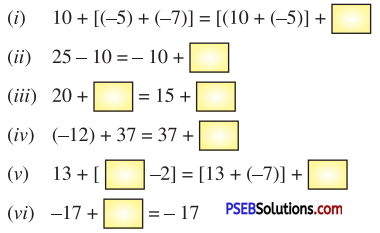
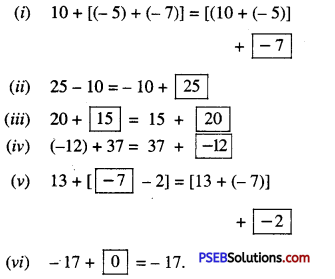
4. Fill in the blanks using properties of addition and subtraction of integers :

PSEB 7th Class Maths Solutions Chapter 1 Integers Ex 1.2 1
Answer:
PSEB 7th Class Maths Solutions Chapter 1 Integers Ex 1.2 2

5. The difference between two integers is – 10. If first integers is 17, then find the other integer ?
Answer:
Difference = – 10
1st Integer = 17
2nd Integer = 1st integer – Difference
= 17 – (- 10)
= 17 + 10 = 27

6. Write three consecutive odd integers succeeding (- 93).
Answer:
Three consecutive odd integers succeeding (- 93) are – 91, – 89, – 87.

PSEB 7th Class Maths Solutions Chapter 1 Integers Ex 1.2

7. At sunrise, the outside temperature was 7° below zero. In the afternoon the temperature rose by 13° and then fell by 8° at night. What was the temperature at the end of the day ?
Answer:
At sunrise, the outside temperature = 0° – 7° = -7°
In the afternoon the temperature = – 7° + 13°
= 6°
At night the temperature
= 6° – 8°
= – 2°
At the end of the day temperature – 2°.

8. Manjeet Singh has a bank balance of -₹430 at the start of the month. What was the bank balance, after he deposited ₹ 250 ?
Answer:
Manjeet Singh’s bank balance in the start of the month = -₹430
Amount deposited in the bank = ₹ 250
The bank balance after depositing = -₹430 + ₹ 250
= -₹(430 + 250)
= -₹180

9. Mount Everest, the highest elevation in Asia, is 29028 feet above the sea level. The Dead Sea is 1312 feet below the sea level. What is the difference between these two elevations ?
Answer:
The elevation of Mount Everest = + 29028 feet
The elevation of the Dead sea = – 1312 feet
Difference between these two elevations = [+ 29028 – (- 1312) feet
= (29098 + 1312) feet
= 30340 feet.

PSEB 7th Class Maths Solutions Chapter 1 Integers Ex 1.2

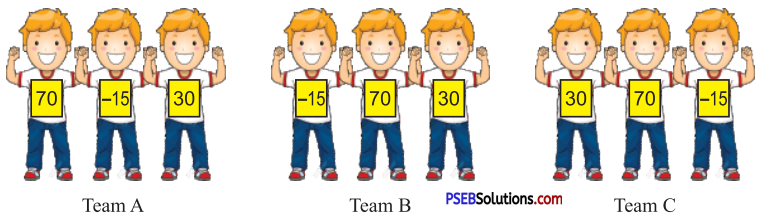
10. In a quiz, Team A scored 70, – 15, 30. Team B scored – 15, 70, 30 and team C score 30, 70, – 15. Which team scored better ? What conclusion do you draw ?
PSEB 7th Class Maths Solutions Chapter 1 Integers Ex 1.2 3
Answer:
Total scores scored by team A = 70 + (- 15) + 30
= 70 + 30 + (- 15)
= 100 – 15 = 85
Total scores scored by team B
= (- 15) + 70 + 30
= (- 15) + 100 = 85
Total scores scored by team C
= 30 + 70 + (- 15)
= 100 + (- 15) = 85
Scores are equal addition of integers is associative Ans.

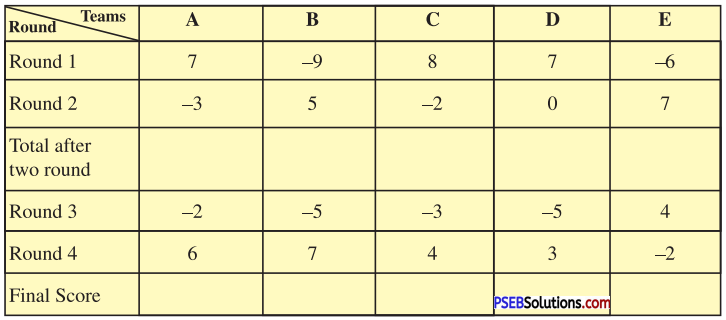
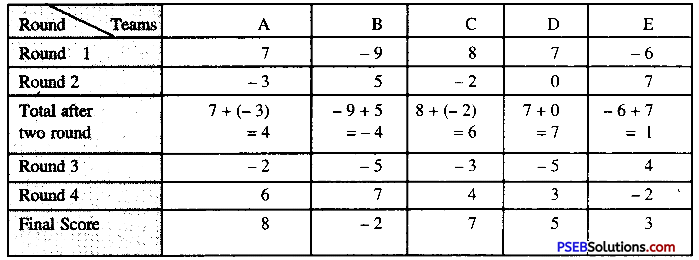
11. In a competition there are 5 Teams and three rounds. The scores of all the teams are given below in the table. Complete the table and find, the teams at 1st, Ind and IIIrd positions.
PSEB 7th Class Maths Solutions Chapter 1 Integers Ex 1.2 4
Answer:
PSEB 7th Class Maths Solutions Chapter 1 Integers Ex 1.2 5
Ist – A, IInd – C, III – D.

12. Multiple choice questions :

Question (i).
(- 5) + (5) =
(a) -10
(b) 5
(c) 10
(d) 0.
Answer:
(d) 0.

Question (ii).
(- 10) + (- 12) =
(a) -2
(b) 22
(c) -22
(d) 2.
Answer:
(c) -22

PSEB 7th Class Maths Solutions Chapter 1 Integers Ex 1.2

Question (iii).
(- 1) – (-1) =
(a) – 2
(b) -1
(c) 2
(d) None of these.
Answer:
(d) None of these.

Question (iv).
Which of the following statements is incorrect ?
(a) Sum of two integers is also an integer.
(b) For all integers a and b, a + b = b + a.
(c) Difference of two integers is also an integer.
(d) Subtraction of integers is commutative.
Answer:
(d) Subtraction of integers is commutative.

Question (v).
Which of the following is correct ?
(a) (- 7) – (3) = 3 – (- 7)
(b) (- 7) + 3 = 3 + (- 7)
(c) (- 1) + [(5) + (- 3)] = [(- 1) + (5)] – (- 3)
(d) None of these.
Answer:
(b) (- 7) + 3 = 3 + (- 7)

PSEB 6th Class Computer Notes Chapter 5 MS Paint Part-2

This PSEB 6th Class Computer Notes Chapter 5 MS Paint Part-2 will help you in revision during exams.

PSEB 6th Class Computer Notes Chapter 5 MS Paint Part-2

Introduction:
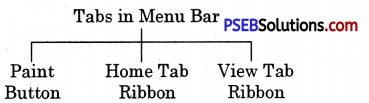
There are two types of Ribbon in Paint:
PSEB 6th Class Computer Notes Chapter 5 MS Paint Part-2 1

Home Tab Ribbon
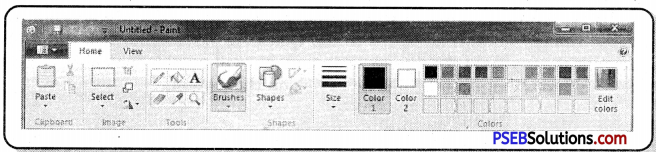
Most of the commands in MS Paint are placed in the home tab ribbon. Home Tab Ribbon of MS Paint contains the most usable tools. This Ribbon appears below the menu bar of MS Paint.

Clipboard Menu
The clipboard menu has three options-Cut, Copy and Paste. Cut and Copy icons are shown only when a selection is active.

PSEB 6th Class Computer Notes Chapter 5 MS Paint Part-2

Image Menu
When we click the down arrow just below the dotted rectangle or just below the word image, a menu offers us further choices.
Before we can use the buttons on the right of this menu, we must select the part of our drawing that we want to work with.

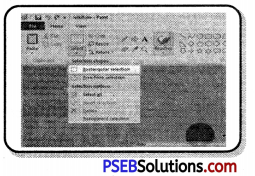
1. Transparent Selection: At the bottom of the Select menu, we can see Transparent selection. This option is useful enough as it removes the white background of selection. We can use our selection with only drawing objects. This option is most frequently used. We can add this option to Quick Access bar for its fast access. There will be a checkbox in front of the Transparent selection.

While that box has a tick in it, selections will be transparent. To make our selections opaque, just click the checkbox to remove the tick.

2. Rectangular Selection: Usually we can make a rectangular selection. After clicking the rectangular selection tool, position the cursor at the top left of the part we want to select, press your mouse button and drag down to its bottom right. A dashed rectangle will appear around our selection. With the Move Cursor we can move our selection or drag while holding the Ctrl key to make a copy of it.

3. Freeform Selection: We may need to make a freeform selection if the part of our drawing that we want to work with is crowded up closely with parts we don’t want to include.

1. Copying a Selection: There is a Copy button on the ribbon for copying, but we can make multiple copies of a selection in a faster way also. For this purpose draw a selection around the part we want to copy, using either the rectangular or the freeform selection tool.
Whenever Move Cursor appears. Hold the Ctrl key and drag your selection to its new location. A new copy of the selection will be moved to the new location. If we want to continue copying, press the Ctrl key again as we begin to drag the second time. Repeat as many times as we needed.

2. Painting with a Selection: Select a small piece from a picture, for example, with more than one color. Hold down the Shift key while dragging it around to make an abstract pattern. We can even write with a small selection.

3. Selection option: To the right of the selection icon we can see three options, Crop, Resize and Rotate flip.
1. Crop: Crop button is like Diamond shape with a line at the top . It helps us to crop our picture to the selected area only. If we click the Save icon after cropping to a selection, our large drawing page will be replaced with the new selection area.

2. Saving a selected area as a drawing:

  • Save the picture we are working on.
  • Select the part we want to save as a drawing. Click the Crop button.
  • Go to the Paint button and open the menu.
  • Click Save as.

Type a name for the new Selected drawing and click Save. We will return to the Paint window with the only selected drawing and the name on the Title bar is the name we used when saving the new Selection.

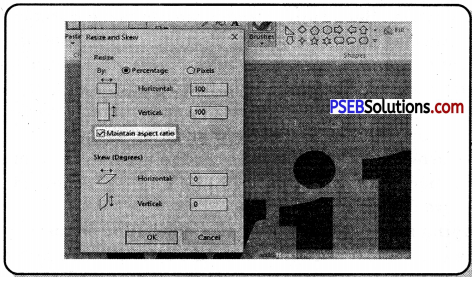
3. Resize and Skew: The second small button to the right of the large Select button will open the Resize and Skew dialog as shown in figure ahead:
PSEB 6th Class Computer Notes Chapter 5 MS Paint Part-2 2

Resize and Skew
(а) Resize: We can quickly resize a selection by dragging any of the little blocks or handles on the selection rectangle. However, if we want the size adjustment to be precise, we must use the Resize and Skew dialog box. When we click the Resize icon, the dialog box appears as shown in the figure.
Only the top half of this dialog is concerned with resizing.
Note: While the option Maintain aspect ratio is checked, whatever we type into the Horizontal slot will be repeated in Vertical and our selection will stay exactly in proportion. We can remove the check if we want the selection to be fatter or thinner.

(b) Skew: The bottom part of the Resize and Skew dialog box allows us to skew our selection. When we use this option, it makes our selection include a lot of border areas to avoid having part of the picture cut off. If this does happen, click Undo and make a wider selection before trying again. This blue box is skewed 20 degrees horizontally. We can skew a selection both horizontally and vertically.

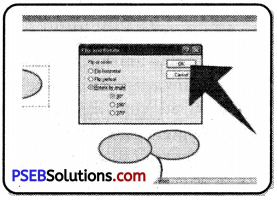
(c) Rotate or Flip: This menu helps us in rotating our drawing item to 90 degrees or 180 degrees. We can also make mirror images of selections using this option. We can mirror the drawing either vertically or horizontally. We can use this option for making some systematic designs in MS Paint.
PSEB 6th Class Computer Notes Chapter 5 MS Paint Part-2 3

(d) Invert Color: Another set of options are available if we right click on a selection. It includes Cut, Copy, Paste, Crop, Select all, Invert selection, Delete, Rotate and Resize, the only one option that is available on this menu and nowhere else is Invert color. This option makes the light colours darken and vice-versa to create an invert colour pattern.

PSEB 6th Class Computer Notes Chapter 5 MS Paint Part-2

Tools Menu
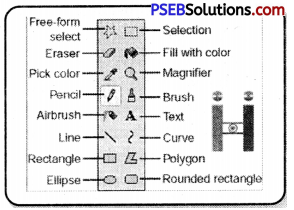
The following tools are available in the tools menu of MS Paint:
1. Pencil: The pencil tool is used for free-hand drawing. We can work with pixel editing when using this tool in zoom-in view. When we work with the pencil tool, we must press the left mouse button to draw with Color 1 and with the right mouse button to draw with Color 2.
PSEB 6th Class Computer Notes Chapter 5 MS Paint Part-2 4
2. Fill with Color: The Fill with color tool is used to fill an area with a single color. Color 1 is used if we press the left mouse button on the area to be filled. Color 2 is used if we press with the right mouse button. This tool does not work successfully if we are trying to color different shades of one color. The Fill with Color tool always fills with a solid color.

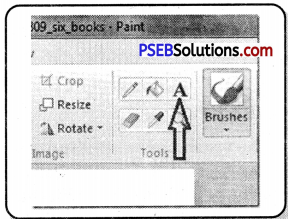
3. Text Tool: The Text tool is used to insert any text. To begin inserting text, click on the text tool. Our cursor will change to an insertion bar. With this cursor we can draw the required size of area for texts. We must not click anywhere outside that area until our text is final from all aspects.
PSEB 6th Class Computer Notes Chapter 5 MS Paint Part-2 5
When we are using the Text Tool then the Text Toolbar starts appearing.

Formatting the Text:

  • Select the text we have typed.
  • Click the down arrow at the end of the Font Name box, so that a list of fonts drops down.
  • Run your cursor-without pressing any mouse buttons—up and down in the font list. As we do this, the appearance of the text we have typed will change accordingly. When we like what we see, click on the name of that font.
  • The font list will close.
  • We can repeat this process with the Font Size list also.
  • We can also click the Background from Transparent to Opaque or vice versa.
  • We can change both Color 1 and Color 2.

We can also type text in different colors, fonts and size, in the same text box. When we are making changes, only selected text will be affected. When we have completed editing of text, we can click anywhere outside of your text box. After clicking away from the text box, the Text Toolbar disappears and the text becomes part of our picture. Now, it cannot be edited in any way.

4. Eraser: The Eraser tool erases the part of a picture with the left button of the mouse pressed. It changes whatever is dragged across to the background color-Color 2 With the right button pressed, the eraser tool changes pixels of Color 1 to Color 2, but leaves everything else unaffected.

5. Color Picker: The Color Picker Tool is used to set the current foreground or background color and to match any color in our picture. It’s especially useful when colors in the picture are different from those on the palette. By picking a color from the picture, we can make sure that we are using the same color as already used in the drawing.

For example: we are zoomed in and working with the Pencil tool on an area that has many shades of red and we want to use one of those shades. Click the Color Picker and click directly on the shade of red that we want to use. The tool will immediately change back to the Pencil, loaded with the color we want.

6. Magnifier: The Magnifier Tool is used to zoom in on a section of our picture. Magnifier can be clicked over an area of which we want a closer view. The Left click gives a closer view and Right click zoom out.

Brushes
The brush tool is similar to the ordinary brush we use for painting, It shows a similar brush effect on the Canvas. We can work in various widths and textures with the help of Brushes. Widths are controlled by the brushes and the Size Tool together; textures are controlled by the brushes.

Shapes
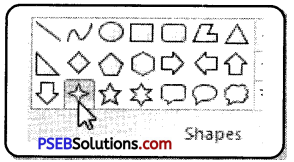
In the Shapes Gallery several tools like Rectangles, Rounded Rectangles Ellipses and Freehand Polygons, the Line Tool and the Curved Line Tool can be seen. There are number of other shapes such as arrows, speech balloons, various stars and others are also Shapes included.
PSEB 6th Class Computer Notes Chapter 5 MS Paint Part-2 6
We can open the Shapes Gallery by clicking the down arrow under the Shapes picture and click the shape we want to draw.

  • Straight Lines: Straight lines can be drawn while the left mouse button is pressed and will usp Color 1, those drawn with the right button will use Color 2. Line will be perfectly straight, If we hold down the Shift key while drawing a line. Ellipses, Rectangles, Circles and Squares: If we want to draw an exact shape such as a square or a circle, hold the Shift key while we draw.
  • Curved Lines: Click the Curved Line button to draw a curve. Click the Outline button and choose Solid Color or a texture of your choice. Then click under the Size picture and choose a line thickness.
  • Freehand Polygons: To draw a freehand polygon, click the Polygon button in the gallery. Hold a mouse button down and draw the first line of the polygon. Then release your mouse button and click where you want the next line to end. Keep clicking end points until you want the last line to finish the shape, then double click.

PSEB 6th Class Computer Notes Chapter 5 MS Paint Part-2

The Size Tool
This tool becomes active only after we choose either a Brush or a Shape.
After selecting our Brush or Shape we will find the down arrow under Size Tool and can choose a line thickness. The line thicknesses offered varies according to the brush we have chosen.

Colors

  • The Color section of the ribbon has three parts: Boxes; showing the active colors – Color 1 and Color 2.
  • Color Palette .
  • Edit Colors button.

1. Color Box:
Color 1: Color 1 is the Foreground Color and is always black when we open Paint.
Color 2: Color 2 is the Background Color and is always white when we open Paint.

2. Color Palette: The two top lines of the Color Palette show all the colors available. Whenever we are making a picture. The line of blank squares at the bottom shows those colors we have edited during our work. Once Paint is closed, the edited colors vanish away.

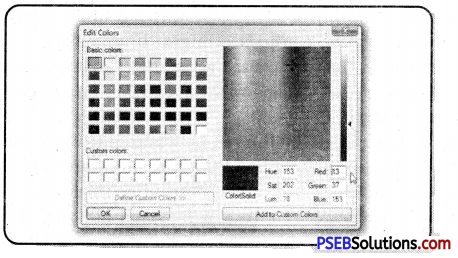
3. Edit Colors: The Edit Colors button takes us into the Edit Colors dialog box. We can click any color on an extended palette and click the Add to Custom Colors button.
PSEB 6th Class Computer Notes Chapter 5 MS Paint Part-2 7
Here only one color will be added to the squares under the palette. To add more colors, we must return to the dialog box and add them one at a time.

View Tab Ribbon
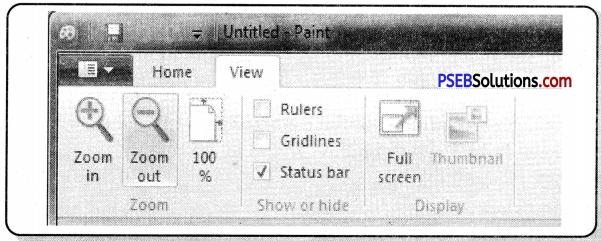
The following section explains the View Tab Ribbon. It has three main options: Zoom, Show or hide and Display.
PSEB 6th Class Computer Notes Chapter 5 MS Paint Part-2 8

Zoom
Zooming in and out can be used alone or in conjunction with the Zoom Tool on the Ribbon or the slider on the Status Bar. Zoom in and Zoom out tools can be clicked repeatedly to get a closer or more distant view. The 100% option brings us back to a normal view of the picture.

Show or Hide
This portion of the View Tab Ribbon includes:

  • The Show or Hide option for the status bar. The status bar is very useful while drawing pictures precisely.
  • Gridlines are convenient if we want to align shapes accurately
  • Rulers can be turned on or off as per our requirement.

Display

  • On the Display section, we can click for Full Screen View. We can also get a Full Screen View by hitting Fll. We can come back to a normal view by pressing the Esc key.
  • Thumbnail: Thumbnails are active only when we are zoomed in. It helps us see how changes we have made are affecting our picture in a normal view.

PSEB 10th Class Hindi Vyakaran विशेषण-निर्माण

Punjab State Board PSEB 10th Class Hindi Book Solutions Hindi Grammar visheshan nirman विशेषण-निर्माण Exercise Questions and Answers, Notes.

PSEB 10th Class Hindi Grammar विशेषण-निर्माण

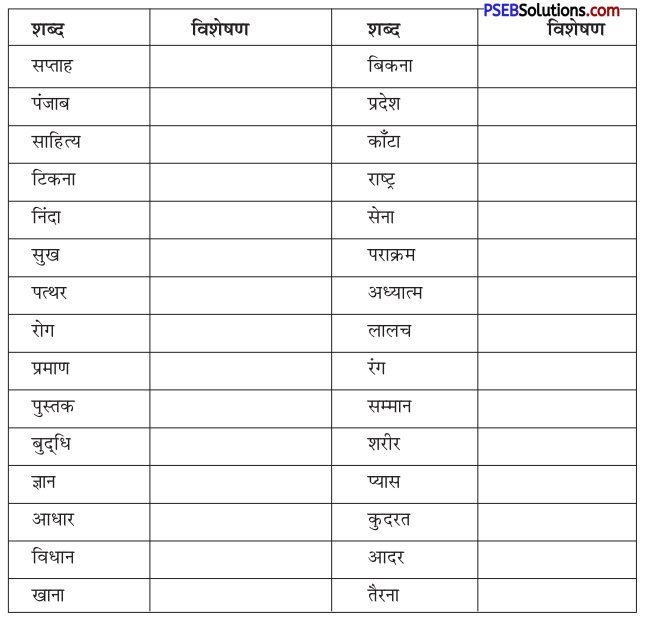
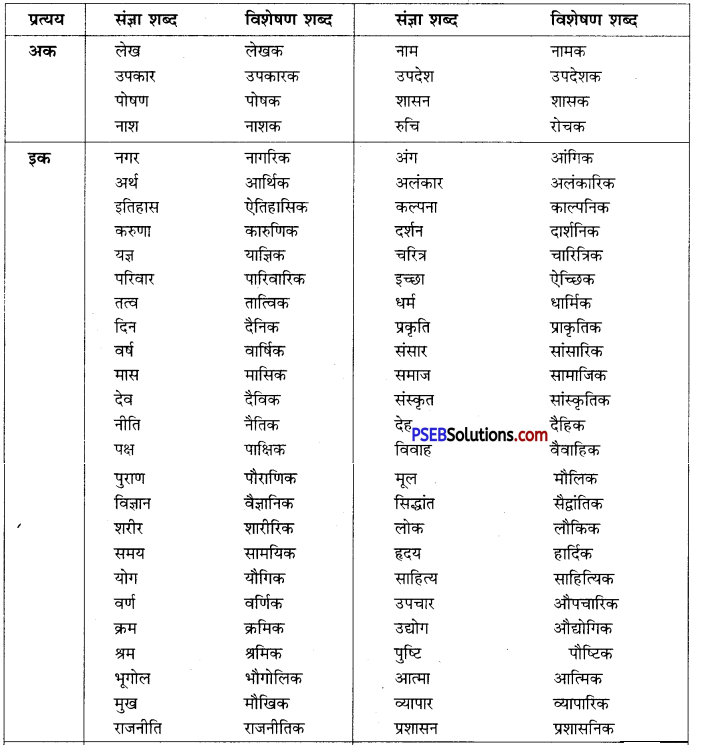
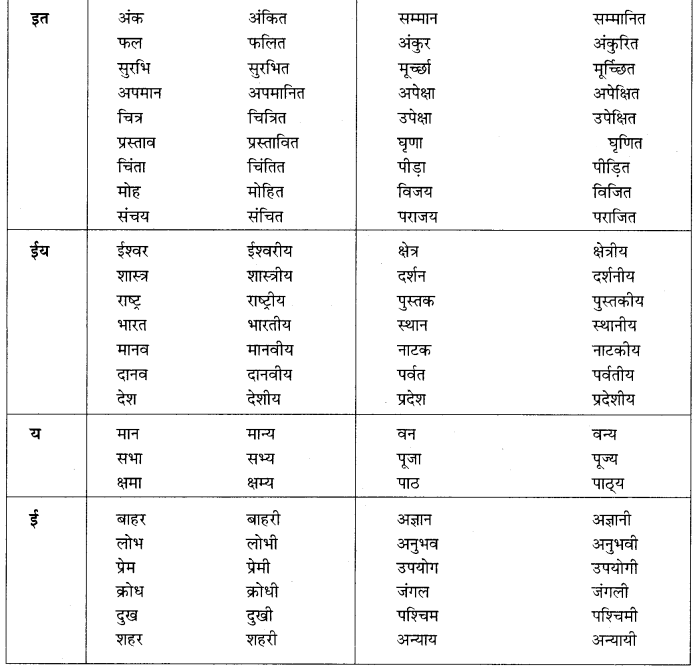
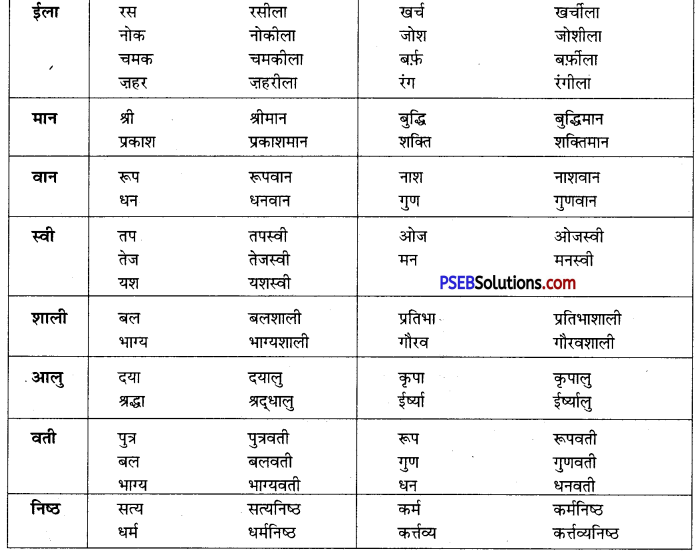
निम्नलिखित शब्दों के विशेषण बनाइए:
PSEB 10th Class Hindi Vyakaran विशेषण-निर्माण 1
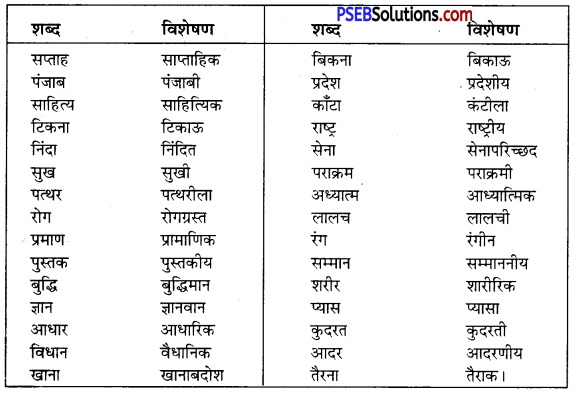
उत्तर:
PSEB 10th Class Hindi Vyakaran विशेषण-निर्माण 2

प्रश्न 1.
इतिहास का विशेषण है
(क) इतिहासीय
(ख) ऐतिहासिक
(ग) इतिहासिक
(घ) ऐतिहासु।
उत्तर:
(ख) ऐतिहासिक

PSEB 10th Class Hindi Vyakaran विशेषण-निर्माण

प्रश्न 2.
घर का विशेषण है
(क) घरेलू
(ख) घरीय
(ग) घरीला
(घ) घरेस्वी।
उत्तर:
(क) घरेलू

प्रश्न 3.
परिवार का विशेषण है
(क) परिवारी
(ख) परिवारू
(ग) पारिवारिक
(घ) परिवारीय।
उत्तर:
(ग) पारिवारिक

प्रश्न 4.
राष्ट्र का विशेषण है
(क) राष्ट्रीय
(ख) राष्ट्र
(ग) राष्ट्रिकता
(घ) राष्ट्रपन।
उत्तर:
(क) राष्ट्रीय

प्रश्न 5.
हृदय का विशेषण है,
(क) हृदयी
(ख) हार्दिय
(ग) हार्दिक
(घ) हार्दित।
उत्तर:
(ग) हार्दिक

प्रश्न 6.
नगर का विशेषण है
(क) नागर
(ख) नागरिक
(ग) नागर्कि
(घ) नागार्कयी।
उत्तर:
(ख) नागरिक

प्रश्न 7.
जिज्ञासा का विशेषण जिज्ञासु है (हाँ या नहीं में उत्तर लिखें)
उत्तर:
हाँ
प्रश्न 8.
भारत का विशेषण भारतीय है। (सही या गलत में उत्तर लिखें)
उत्तर:
सही

प्रश्न 9.
प्रकृति का विशेषण परकृतिय है (हाँ या नहीं में उत्तर लिखें)
उत्तर:
नहीं

प्रश्न 10.
साहित्य का विशेषण साहित्यिक है (सही या गलत में उत्तर लिखें)
उत्तर:
गलत।

PSEB 10th Class Hindi Vyakaran विशेषण-निर्माण

वर्ष
निम्नलिखित में से किसी एक शब्द का विशेषण लिखिए
1. बाहर, पंजाब।
उत्तर:
बाहर = बाहरी
पंजाब = पंजाबी।

2. दिन, धन।
उत्तर:
दिन = दैनिक
धन = धनवान, धनवती।

3. बुद्धि, शहर।
उत्तर:
बुद्धि = बुद्धिमान
शहर = शहरी।

वर्ष
1. रंग, खामोश
उत्तर:
रंग = रंगीला
खामोश = खामोशी।

2. सप्ताह, ज्ञान
उत्तर:
सप्ताह = साप्ताहिक
ज्ञान = ज्ञानी/ज्ञानवान।

3. व्यापार, हित
उत्तर:
व्यापार = व्यापारिक
हित = हितवती/हितैषी।

प्रश्न 1.
विशेषण किसे कहते हैं?
उत्तर:
जिन शब्दों से संज्ञा या सर्वनाम की विशेषता व्यक्त होती है, उन्हें विशेषण कहते हैं; जैसेभोली राधा चतुर कृष्ण की बातों में आ गई। इस वाक्य में भोली राधा का तथा चतुर कृष्ण का विशेषण है।

प्रश्न 2.
मूल रूप से कौन-से शब्द विशेषण हैं?
उत्तर:
मूल रूप से विशेषण शब्द अच्छा, कोमल, बुरा, लाल, पीला, विद्वान, पुराना, कठोर, नया, निपुण, मज़बूत आदि हैं।

प्रश्न 3.
विशेषणों का निर्माण कैसे होता है?
उत्तर:
विशेषणों का निर्माण संज्ञा, सर्वनाम, क्रिया तथा अव्यय शब्दों में प्रत्यय लगाकर तथा कहीं-कहीं कुछ आवश्यक परिवर्तन करके किया जाता है; जैसे-

  1. संज्ञा शब्द ‘पालन’ में ‘अक’ प्रत्यय लगाकर तथा अंतिम वर्ण को हटाकर विशेषण शब्द ‘पालक’ बनता है।
  2. सर्वनाम शब्द ‘वह’ में ‘सा’ प्रत्यय लगाने से विशेषण शब्द ‘वैसा’ बनता है।
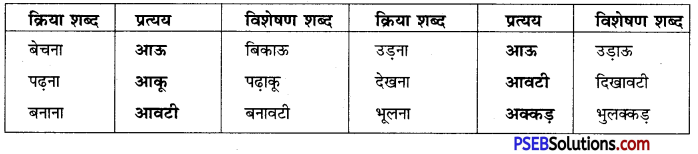
  3. क्रिया शब्द ‘पढ़ना’ में ‘आक् प्रत्यय लगाने तथा अंतिम ‘ना’ हटाने से विशेषण शब्द ‘पढ़ाकू’ बनता है।
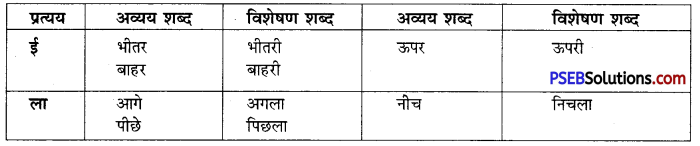
  4. अव्यय शब्द ‘भीतर’ में ‘ई’ प्रत्यय लगाने से विशेषण शब्द ‘भीतरी’ बनता है।

PSEB 10th Class Hindi Vyakaran विशेषण-निर्माण

प्रश्न 4.
संज्ञा शब्दों से विशेषण शब्दों का निर्माण कीजिए।
उत्तर:
संज्ञा शब्द से विशेषण शब्द का निर्माण
PSEB 10th Class Hindi Vyakaran विशेषण-निर्माण 3
PSEB 10th Class Hindi Vyakaran विशेषण-निर्माण 4
PSEB 10th Class Hindi Vyakaran विशेषण-निर्माण 5

PSEB 10th Class Hindi Vyakaran विशेषण-निर्माण

प्रश्न 5.
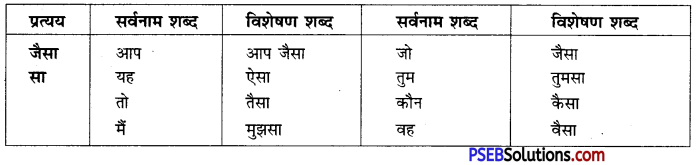
सर्वनाम शब्दों से विशेषण शब्दों का निर्माण कीजिए।
उत्तर:
सर्वनाम शब्द से विशेषण शब्द निर्माण
PSEB 10th Class Hindi Vyakaran विशेषण-निर्माण 6

प्रश्न 6.
क्रिया शब्दों से विशेषण शब्दों का निर्माण कीजिए।
उत्तर:
क्रिया शब्द से विशेषण शब्द निर्माण
PSEB 10th Class Hindi Vyakaran विशेषण-निर्माण 7

प्रश्न 7.
अव्यय शब्दों से विशेषण शब्दों का निर्माण कीजिए।
उत्तर:
अव्यय शब्द से विशेषण शब्द निर्माण
PSEB 10th Class Hindi Vyakaran विशेषण-निर्माण 8

PSEB 7th Class Maths Solutions Chapter 2 Fractions and Decimals Ex 2.1

Punjab State Board PSEB 7th Class Maths Book Solutions Chapter 2 Fractions and Decimals Ex 2.1 Textbook Exercise Questions and Answers.

PSEB Solutions for Class 7 Maths Chapter 2 Fractions and Decimals Ex 2.1

1. Solve the following fractions :

Question (i).
4 + \(\frac {7}{8}\)
Answer:
4 + \(\frac {7}{8}\)
= \(\frac{4 \times 8+7}{8}\)
= \(\frac{32+7}{8}\)
= \(\frac {39}{8}\)
= 4\(\frac {7}{8}\)

Question (ii).
\(\frac{9}{11}-\frac{4}{15}\)
Answer:
\(\frac{9}{11}-\frac{4}{15}\)
= \(\frac{9 \times 15-4 \times 11}{11 \times 15}\)
= \(\frac{135-44}{165}\)
= \(\frac {91}{165}\)

Question (iii).
\(\frac{11}{16}-\frac{2}{5}+\frac{8}{10}\)
Answer:
\(\frac{11}{16}-\frac{2}{5}+\frac{8}{10}\)
PSEB 7th Class Maths Solutions Chapter 2 Fractions and Decimals Ex 2.1 1a
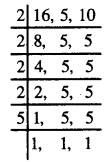
LCM of 16, 5 and 10
= 2 × 2 × 2 × 2 × 5
= 80
= \(\frac{11 \times 5-2 \times 16+8 \times 8}{80}\)
= \(\frac{55-32+64}{80}\)
= \(\frac {87}{80}\)
= 1\(\frac {7}{80}\)

Question (iv).
\(2 \frac{1}{5}+6 \frac{1}{2}\)
Answer:
\(2 \frac{1}{5}+6 \frac{1}{2}\)
= \(\frac{11}{5}+\frac{13}{2}\)
= \(\frac{11 \times 2+13 \times 5}{5 \times 2}\)
= \(\frac{22+65}{10}\)
= \(\frac {87}{10}\)
= 8\(\frac {7}{10}\)

Question (v).
\(8 \frac{1}{2}-3 \frac{5}{8}\)
Answer:
\(8 \frac{1}{2}-3 \frac{5}{8}\)
= \(\frac{17}{2}-\frac{29}{8}\)
= \(\frac{17 \times 4-29}{8}\)
= \(\frac{68-29}{8}\)
= \(\frac {39}{8}\)
= 4\(\frac {7}{8}\)

PSEB 7th Class Maths Solutions Chapter 2 Fractions and Decimals Ex 2.1

Question (vi).
\(\frac{9}{10}-\frac{9}{100}+\frac{9}{1000}\)
Answer:
\(\frac{9}{10}-\frac{9}{100}+\frac{9}{1000}\)
= \(\frac{9 \times 100-9 \times 10+9}{1000}\)
= \(\frac{900-90+9}{1000}\)
= \(\frac {810}{1000}\)

2. Arrange the following in ascending order :

Question (i).
\(\frac{2}{17}, \frac{10}{17}, \frac{3}{17}, \frac{16}{17}, \frac{5}{17}, \frac{8}{17}\)
Answer:
Ascending order of \(\frac{2}{17}, \frac{10}{17}, \frac{3}{17}, \frac{16}{17}, \frac{5}{17}, \frac{8}{17}\) is:
\(\frac{2}{17}, \frac{3}{17}, \frac{5}{17}, \frac{8}{17}, \frac{10}{17}, \frac{16}{17}\)

Question (ii).
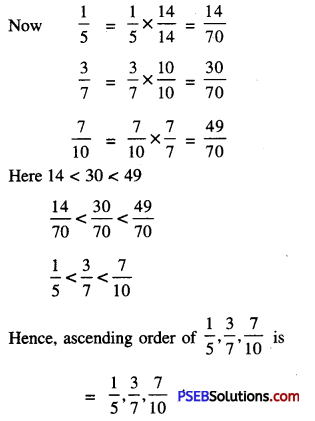
\(\frac{1}{5}, \frac{3}{7}, \frac{7}{10}\)
Answer:
\(\frac{1}{5}, \frac{3}{7}, \frac{7}{10}\)
PSEB 7th Class Maths Solutions Chapter 2 Fractions and Decimals Ex 2.1 2a
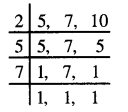
L.C.M of 5, 7 , 10 = 2 × 5 × 7
= 70
PSEB 7th Class Maths Solutions Chapter 2 Fractions and Decimals Ex 2.1 3a

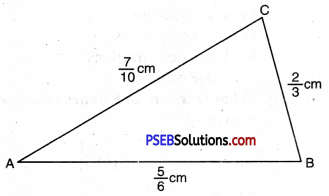
3. The three sides AB, BC and CA of a triangle ΔABC are \(\frac {5}{6}\)cm, \(\frac {2}{3}\)cm and \(\frac {7}{10}\) cm respectively. Find the perimeter of the triangle.
PSEB 7th Class Maths Solutions Chapter 2 Fractions and Decimals Ex 2.1 9
Answer:
Slides of ΔABC are
AB = \(\frac {5}{6}\) cm,
BC = \(\frac {2}{3}\)
CA = \(\frac {7}{10}\)
PSEB 7th Class Maths Solutions Chapter 2 Fractions and Decimals Ex 2.1 4a
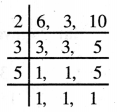
L.C.M. (6, 3, 10) = 2 × 3 × 5 = 30
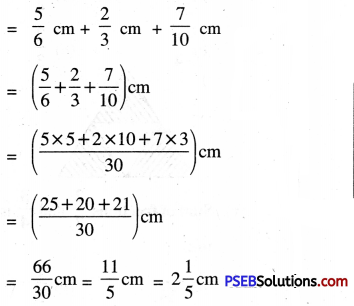
Perimeter of ΔABC = AB + BC + CA
PSEB 7th Class Maths Solutions Chapter 2 Fractions and Decimals Ex 2.1 5a

PSEB 7th Class Maths Solutions Chapter 2 Fractions and Decimals Ex 2.1

4. Ramesh studies for 5\(\frac {2}{3}\) hours daily. He devotes 2\(\frac {4}{5}\) hours of his time for science devotes for other subjects ?
Answer:
Total daily time for all subjects
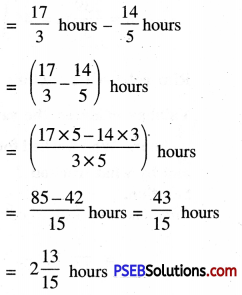
= 5\(\frac {2}{3}\) hours = \(\frac {17}{3}\) hours
Time for science and mathematics
= 2\(\frac {4}{5}\) hours = \(\frac {14}{5}\) hours
Time for other subjects
PSEB 7th Class Maths Solutions Chapter 2 Fractions and Decimals Ex 2.1 6a

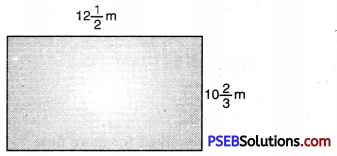
5. Sonia jogs once around the rectangular park of sides 10\(\frac {2}{3}\)m and 12\(\frac {1}{2}\)m. Find the total distance covered by the Sonia.
PSEB 7th Class Maths Solutions Chapter 2 Fractions and Decimals Ex 2.1 7a
Answer:
Length of rectangular park
= 12\(\frac {1}{2}\)m = \(\frac {25}{2}\)m
Breadth of rectangular park
= 10\(\frac {2}{3}\)m = \(\frac {32}{3}\)m
Total distance covered by Sonia = 2 [Length + Breadth]
= \(2\left(\frac{32}{3}+\frac{25}{3}\right) \mathrm{m}\)
= \(2\left(\frac{32 \times 2+25 \times 3}{3 \times 2}\right) \mathrm{m}\)
= \(2\left(\frac{65+75}{6}\right) \mathrm{m}\)
= \(\frac {278}{6}\) m
= \(\frac {139}{3}\) m
= 46\(\frac {1}{3}\) m

6. Ritu coloured a picture in \(\frac {7}{12}\) hours. Vaibhav coloured the same picture in \(\frac {3}{4}\) hours. Who worked for a longer time and by what fraction ?
Answer:
Time taken by Ritu to colour
= \(\frac {7}{12}\) hours
Time taken by Vaibhav = \(\frac {3}{4}\) hours
= \(\frac {3}{4}\) × \(\frac {3}{3}\)
= \(\frac {9}{12}\) hours
Since 9 > 7
∴ \(\frac {9}{12}\) > \(\frac {7}{12}\)
∴ Vaibhav worked for more time.
Difference between time taken by
Vaibhav and Ritu = \(\frac{3}{4}-\frac{7}{12}\)
= \(\frac{3 \times 3-7}{12}\)
= \(\frac{9-7}{12}=\frac{2}{12}\)
= \(\frac {1}{6}\) of an hour.

PSEB 7th Class Maths Solutions Chapter 2 Fractions and Decimals Ex 2.1

7. Multiple Choice Questions :

Question (i).
Fraction \(\frac {2}{5}\), \(\frac {7}{5}\) are :
(a) Like fractions
(b) Unlike fractions
(c) Equivalent fractions
(d) None of these
Answer:
(a) Like fractions

Question (ii).
What fraction do 8 hours of a day represents ?
(a) \(\frac {1}{2}\)
(b) \(\frac {1}{3}\)
(c) \(\frac {8}{60}\)
(d) \(\frac {2}{3}\)
Answer:
(b) \(\frac {1}{3}\)

Question (iii).
Equivalent fraction of \(\frac {3}{5}\) is :
(a) \(\frac {13}{15}\)
(b) \(\frac {5}{3}\)
(c) \(\frac {9}{15}\)
(d) \(\frac {5}{13}\)
Answer:
(c) \(\frac {9}{15}\)

Question (iv).
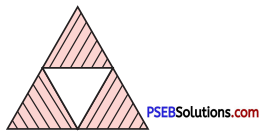
Shaded area of given triangle represents the fractions:
(a) \(\frac {1}{3}\)
(b) \(\frac {3}{4}\)
(c) \(\frac {1}{4}\)
(d) \(\frac {2}{3}\)

PSEB 7th Class Maths Solutions Chapter 2 Fractions and Decimals Ex 2.1 8a
Answer:
(b) \(\frac {3}{4}\)

Question (v).
Sum of fractions \(\frac {2}{7}\), \(\frac {3}{4}\) is equal to :
(a) \(\frac {5}{28}\)
(b) \(\frac {1}{3}\)
(c) \(\frac {5}{11}\)
(d) \(\frac {29}{28}\)
Answer:
(d) \(\frac {29}{28}\)

PSEB 7th Class Maths MCQ Chapter 1 Integers

Punjab State Board PSEB 7th Class Maths Book Solutions Chapter 1 Integers MCQ Questions with Answers.

PSEB 7th Class Maths Chapter 1 Integers MCQ Questions

Multiple Choice Questions

Question 1.
The value of -| – 21| is :
(a) 21
(b) -21
(c) 1
(d) None of these.
Answer:
(b) -21

Question 2.
17 + (-18) =
(a) 35
(b) 1
(c) -1
(d) -35.
Answer:
(c) -1

Question 3.
(-15) × 0 is equal to :
(a) 0
(b) -15
(c) 15
(d) 1.
Answer:
(a) 0

Question 4.
The product of 3 × -1 is :
(a) 3
(b) – 3
(c) 1
(d) -1.
Answer:
(b) – 3

Question 5.
(-8) ÷ (-1) is equal to :
(a) 8
(b) 1
(c) -8
(d) -1.
Answer:
(a) 8

PSEB 7th Class Maths Solutions Chapter 1 Integers MCQ

Fill in the blanks

Question 1.
0 is greater than every …………….. integer
Answer:
Negative

Question 2.
25 – 10 = -10 + ……..
Answer:
25

Question 3.
15 × ……… = 0
Answer:
0

Question 4.
369 ÷ ……… = 369
Answer:
1

Question 5.
20 ÷ ……… = -2.
Answer:
-10

PSEB 7th Class Maths Solutions Chapter 1 Integers MCQ

Write True or False

Question 1.
Sum of two integeres is also integer.
Answer:
True

Question 2.
(-7) + 3 = 3 + (-7) (True/False)
Answer:
True

Question 3.
-2 + 2 = 0 (True/False)
Answer:
True

Question 4.
1 ÷ a = 1 (True/False)
Answer:
False

Question 5.
a ÷ 1 = 0. (True/False)
Answer:
True

PSEB 7th Class Maths Solutions Chapter 1 Integers Ex 1.4

Punjab State Board PSEB 7th Class Maths Book Solutions Chapter 1 Integers Ex 1.4 Textbook Exercise Questions and Answers.

PSEB Solutions for Class 7 Maths Chapter 1 Integers Ex 1.4

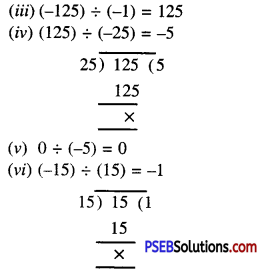
1. Evaluate each of the following :
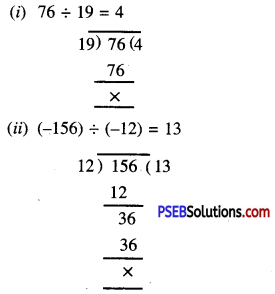
(i) 76 ÷ 19
(ii) (-156) ÷ (-12)
(iii) (-125) ÷ (-1)
(iv) (125) ÷ (-25)
(v) 0 ÷ (-5)
(vi) (-15) ÷ (15)
Answer:
PSEB 7th Class Maths Solutions Chapter 1 Integers Ex 1.4 1
PSEB 7th Class Maths Solutions Chapter 1 Integers Ex 1.4 2

2. Write all even integers between -18 and 0.
Answer:
All even integers between – 18 and 0 are :
-16, -14, -12, -10, -8, -6, -4, -2.

3. Write all odd integers between -9 and 9.
Answer:
All odd integers between -9 and 9 are :
-7, -5, -3, -1, 1, 3, 5, 7.

PSEB 7th Class Maths Solutions Chapter 1 Integers Ex 1.4

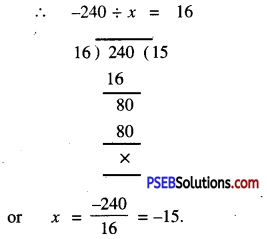
4. By what number should (-240) be divided to obtain 16.
Answer:
Let the required number be x
∴ -240 ÷ x = 16
PSEB 7th Class Maths Solutions Chapter 1 Integers Ex 1.4 3
Hence, the required number is -15

5. Find the value of :

Question (i).
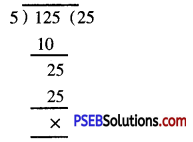
125 ÷ [5 ÷ (-1)]
Answer:
125 ÷ [5 ÷ (-1)] = 125 ÷ (-5)
= -25 Ans.
PSEB 7th Class Maths Solutions Chapter 1 Integers Ex 1.4 4

Question (ii).
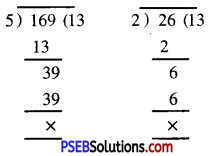
[169 ÷ 13] ÷ [26 ÷ 2]
Answer:
[169 ÷ 13] ÷ [26 ÷ 2]
= [13] ÷ [13] = 1 Ans.
PSEB 7th Class Maths Solutions Chapter 1 Integers Ex 1.4 5

Question (iii).
[(-105) ÷ 3] ÷ 7
Answer:
[(-105) ÷ 3] ÷ 7
= [-35] ÷ 7
= -5.
PSEB 7th Class Maths Solutions Chapter 1 Integers Ex 1.4 6

6. Simplify : 12 – [8 + 27 ÷ (2 × 8 – 7)]
Answer:
12 – [8 + 27 + (2 × 8 – 7)]
= 12 – [8 + 27 ÷ (16 – 7)]
= 12 – [8 + 27 ÷ (9)]
= 12 – [8 + 3] = 12- 11
= 1

PSEB 7th Class Maths Solutions Chapter 1 Integers Ex 1.4

7. Simplify : 10 – [8 – {11 + 30 ÷ (4 + 2)}]
Answer:
10 – [8 – {11 + 30 (4 + 2)}]
= 10 – [8 – {11 + 30 ÷ 6}]
= 10 – [8 – (11 + 5)]
= 10 – [8 – 16]
= 10 – [-8]
= 10 + 8 = 18

8. Multiple Choice Questions :

Question (i).
(-8) ÷ 2 =
(a) -16
(b) -4
(c) 4
(d) -8.
Answer:
(b) -4

Question (ii).
(-7) ÷ (-7) =
(a) -1
(b) 49
(c) -49
(d) None of these.
Answer:
(d) None of these.

Question (iii).
0 ÷ 2 =
(a) 1
(b) 2
(c) -2
(d) 0.
Answer:
(d) 0.

PSEB 7th Class Maths Solutions Chapter 1 Integers Ex 1.4

9. The quotient of two integers is always an integer. (True/False)
Answer:
False.

10. If a and b are two unequal non-zero integers then a ÷ b = b ÷ a. (True/False)
Answer:
False.

PSEB 6th Class Computer Notes Chapter 8 Output Devices

This PSEB 6th Class Computer Notes Chapter 8 Output Devices will help you in revision during exams.

PSEB 6th Class Computer Notes Chapter 8 Output Devices

Introduction
Computer is an electronic device which gets input, processes it and give the output. Input is given to computer by input devices. The result which is provided to the user is called output. This output is given to the user using some devices. These devices are known as output devices.

Output Devices:
Output devices are those devices which are used to get output from the computer. These devices display the information into human readable form. These devices are connected to computer using some wires or wireless media. These devices can show the output in text, audio, video are graphic form. There are a lot of output devices available these days.

Uses of output devices: Output devices are used for following purposes:

  • These provide information from the computer.
  • These can be used to get hard copy as well as soft copy.
  • These give the information whether the computer has completed its work or not.

Types of Output Devices
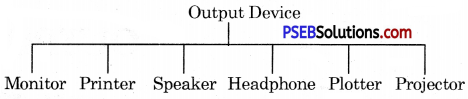
There are many types of output devices available these days. Output devices can be categorized into following categories:

  • Monitor
  • Printer
  • Speaker
  • Headphone
  • Plotter
  • Projector

PSEB 6th Class Computer Notes Chapter 8 Output Devices 1

Monitor:
PSEB 6th Class Computer Notes Chapter 8 Output Devices 2
Monitor is also called visual display terminal. It is used to get soft copy of the output. It is most common output device. It looks like a television screen.
PSEB 6th Class Computer Notes Chapter 8 Output Devices 3
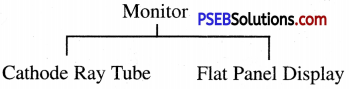
There are different kinds of monitors available these days.

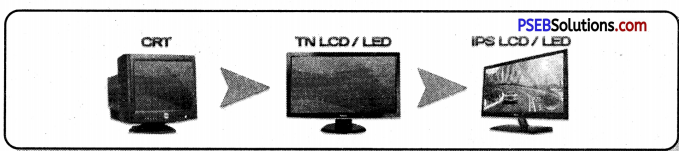
  • Cathode ray tube.
  • Flat panel display

1. Cathode ray tube monitor: These monitors were used in earlier days. These monitors use cathode ray technology to display the information. They look like bulky television sets. The size of these monitors is measured by the diagonal length on the screen. Monitors are available in 15, 17, 19 and 21 inches screens. Initially they were black and white but now colored monitors are also available.

2. Flat panel display monitors: These are the monitors which have a thin display portion. They are reduced in volume, weight and Pi requirement. These monitors can be hung up on the walls. We can see these monitors on calculators, video games, laptop computers etc. These monitors consume less power. Some examples of flat panel display monitors are LCD, LED and plasma.

PSEB 6th Class Computer Notes Chapter 8 Output Devices

Differences between CRT monitors and Flat panel monitors:

CRT Monitor Flat Panel Display Monitors
(i) CRT monitors are big in size. (i) Flat panel monitors are small in size.
(ii) CRT monitors are heavy. (ii) Flat panel monitors are light weight.
(iii) They produce large amount of heat. (iii) Flat panel produce very less heat.
(iv) They use more electricity. (iv) They use less electricity.
(v) CRT monitors are cheaper.
PSEB 6th Class Computer Notes Chapter 8 Output Devices 4
(v) These monitors are costly.
PSEB 6th Class Computer Notes Chapter 8 Output Devices 5

Speaker
Speaker is an output device. Speakers are used to get audio output from the computer. They are connected to the sound card of the computer. Speakers produce audio output in the form of sound waves. Any type of sound can be produced by computer using the speaker.
PSEB 6th Class Computer Notes Chapter 8 Output Devices 6

  • These speakers are required if the user wants to listen songs or watch a movie on a computer. There are many types of speakers available in the market.
  • These ranges from small size to very big size. Normally a set of two speakers is attached to the computer. These speakers are connected to computers using two wires, one for data supply and second for power supply.

Headphone
Headphones are also an output device. These are nothing but smaller versions of speakers. Headphones are also known as earphones. These devices are portable devices. These devices can be plugged into the computer directly or to the speaker attached to the computer. These devices are used when the user alone wants to listen music.

Headphones are similar to the headphones which we use on our mobile phones. They are also available in a variety of models.
PSEB 6th Class Computer Notes Chapter 8 Output Devices 7

Printer:
Printer is an output device which gives a hard copy of the output. The output given by the printer is permanent in nature.
PSEB 6th Class Computer Notes Chapter 8 Output Devices 8
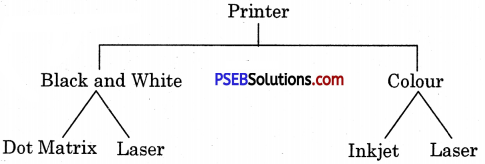
This output can be preserved in the form of paper. There are a lot of printers available in the market. Printer can be colored as well as black and white.

Printer can be divided into three main categories:

  1. Dot Matrix printer
  2. Inkjet printer
  3. Laser printer

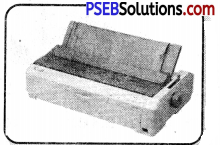
1. Dot Matrix printer: As the name suggests, these printers print any character by combination of various dots. These printers are not very much costly. The speed of these printers is also slow. The printing quality of this printer is not very good. These produce a lot of sound while working. The resolution of printing is also very low. These printers fall in the category of impact printer. These printers are not used in large quantities these days.
PSEB 6th Class Computer Notes Chapter 8 Output Devices 9

2. Inkjet printer: Inkjet printer can be called a non-impact version of Dot Matrix printer.
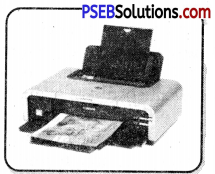
Similar to Dot Matrix printer inkjet printer also print the text or graphics in the form of small dots. These printers can be colored printers. The printing cost of these printers is very low. The main advantage of these printers is that they do not produce sound while working. These printers are faster than Dot Matrix printers. These printers have small dots of ink on the paper. That is why they are called inkjet printers.
PSEB 6th Class Computer Notes Chapter 8 Output Devices 10
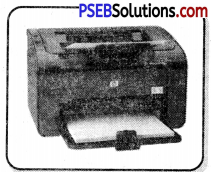
3. Laser printer: Laser printers are the most commonly used printers these days. They use laser technology to print on paper. This printer is black and white as well as colored. The speed of printing in this printer is very high. Their printing quality is also very high. These printers do not produce any sound while working. This printer is costly but the per paper cost is not very much.
PSEB 6th Class Computer Notes Chapter 8 Output Devices 11

Plotter
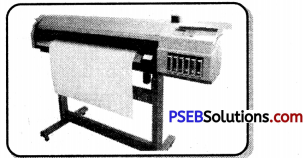
Plotters also give hard copies of output. These are similar to the printer but plotters are used to print on big sized paper or canvas. Plotters are used in computer aided designs. These are used for some specific areas of application such as engineering design graphical design etc. Plotters use pens for drawing pictures in the media. The most common use of plotter is the big banners which we see in the market. These banners are printed with the help of plotters. Plotter can print black and white as well as color. Plotters are very costly devices. They cannot be awarded by single person.

These are of following types:

  • Drum Plotter
  • Flatbed Plotter
  • Inkjet Plotter.

1. Drum Plotter: In drum plotter, a drum is used to rotate in vertical motion. It contains one or more Horizontal pen holders. These pens are used to draw lines on the paper. Drum and pen draw the design by working together simultaneously. Each pen is program selectable. Pens use different colours to draw.

2. Flatbed Plotter: It draws on flat paper. This paper is spread on flat bet table. Paper is not rotated. The pen moves as per the drawing. It contains many pen holdings of different colours. The plot area is as per bed area. It can range from A4 to 50 feet or more.

3. Inkjet Plotter: These plotters uses inkjet technology instead of pens. They can draw in colour. These plotters are usually faster than other types of plotters.
PSEB 6th Class Computer Notes Chapter 8 Output Devices 12

PSEB 6th Class Computer Notes Chapter 8 Output Devices

Projector
Projector is an output device which is used to get visual output. They can be connected to computers.
The projector gives the output big in size. The projectors are mainly used to display something to a large number of people. They are used in office meetings or in classroom teaching by the teachers.
PSEB 6th Class Computer Notes Chapter 8 Output Devices 13
Other Output Devices

Example:

  • Digital camera
  • Pen Drive
  • CD/DVD
  • Modem
  • Fax

Difference Between Input and Output Devices
Following are the differences between input and output devices:

Input devices Output devices
(i) Input devices are used to give input to computers. (i) These devices are used to get output from the computer.
(ii) Data and instructions are given as input using these devices. (ii) After processing information is taken using these devices.
(iii) Input devices are available in large categories. (iii) The categories of availability of in output devices is less.

PSEB 9th Class Science Solutions Chapter 8 Motion

Punjab State Board PSEB 9th Class Science Book Solutions Chapter 8 Motion Textbook Exercise Questions and Answers.

PSEB Solutions for Class 9 Science Chapter 8 Motion

PSEB 9th Class Science Guide Motion Textbook Questions and Answers

Question 1.
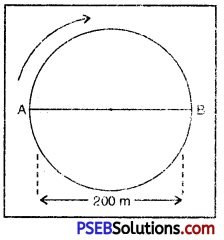
An athelete completes one round of circular track of diameter 200 m in 40 s. What will be the distance covered and the displacement at the end of 2 min 20 s?
Solution:
PSEB 9th Class Science Solutions Chapter 8 Motion 1
Diameter of circular track (d) = 200m
Radius of circular track (r) = \(\frac{d}{2}\) = \(\frac{200m}{2}\) = 100m
Length of circular track (circumference) = 2πr = 2 × \(\frac{22}{7}\) × 100
= \(\frac{4400}{7}\)m
Time taken to complete 1 round (t) = 40 s
Total time = 2 minutes 20 seconds
= (2 × 60 + 20) seconds
= (120 + 20) seconds
= 140 s.
Distance covered in 40 s = \(\frac{4400}{7}\) m = (Circumference of 1 complete circular track)
Distance covered in 1 s = \(\frac{4400}{7×40}\) m
Distance covered in 140 s = \(\frac{4400}{7×40}\) × 140 = 2200 m
An athelete starting from A and going in clockwise direction returns to point A in 3 rounds and reaches point B in 3.5 rounds.
∴ Displacement in 3.5 rounds = AB = shortest distance between initial and final position = 200 m from A to B.

PSEB 9th Class Science Solutions Chapter 8 Motion

Question 2.
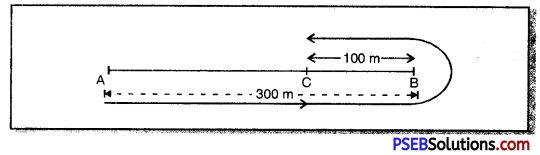
Joseph jogs from end A to the other end B of a straight 300 m road in 2 minutes 50 seconds and then turns around and jogs 100 m back to point C in another 1 minute. What are Joseph’s average speeds and velocities in jogging (a) from A to B (b) from A to C?
Solution:
(a) Length between end point A and end point B (AB) = 300 m
Time taken (t) = 2 min. 30 s
= (2 × 60 + 30) s
= (120 + 30) s
= 150 s.
PSEB 9th Class Science Solutions Chapter 8 Motion 2
Average speed = Average velocity
= \(\frac{Total distance between A and B(AB)}{Total time(t)}\)
= \(\frac{300m}{150s}\)
= 2ms-1

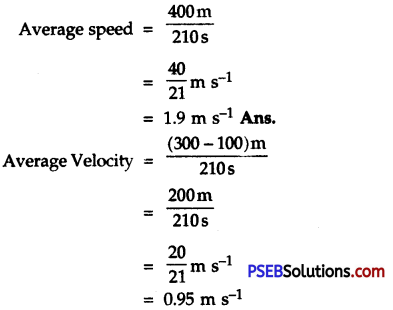
(b) Length from end A to end B + Length on return from B to point C.
= AB + BC
= 300 m + 100 m
= 400 m
Total Time = 2 min 30 s + 1 min
= 3 min 30 s
= (3 × 60 + 30) s
= (180 + 30) s
= 210 s
PSEB 9th Class Science Solutions Chapter 8 Motion 3

Question 3.
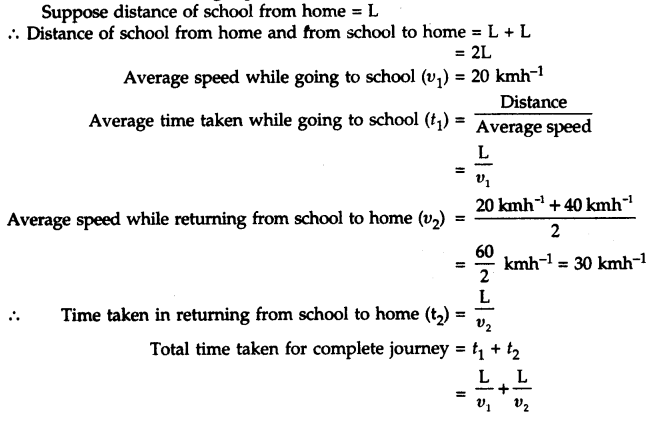
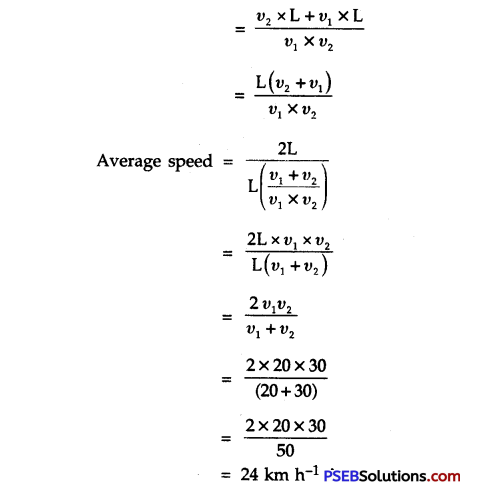
Abdul while driving to school, computes the average speed for his trip to be 20 km h-1. On his trip along the same route, there is less traffic and average speed is 40 km h-1. What is the average speed for Abdul’s trip?
Solution:
PSEB 9th Class Science Solutions Chapter 8 Motion 4
PSEB 9th Class Science Solutions Chapter 8 Motion 5

PSEB 9th Class Science Solutions Chapter 8 Motion

Question 4.
A motorboat starting from rest on a lake accelerates in a straight line at a constant rate of 3.0 m s-2 for 8.0 s. How far does the boat travel during this time?
Solution:
Here, initial velocity of motorboat (u) = 0 [Starting from rest]
Acceleration (a) = 3.0 m s-2
Time (t) = 8.0 s
Distance covered by the motorboat (S) =?
We know, S = ut + \(\frac{1}{2}\)at2
= 0 × 8 + \(\frac{1}{2}\) × 3 × (8)2
= 0 + \(\frac{1}{2}\) × 3 × 8 × 8
∴ S = 96 m.
In other words, the motorboat covers a distance (S) = 96 m.

Question 5.
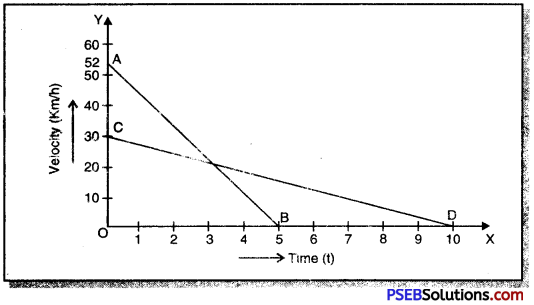
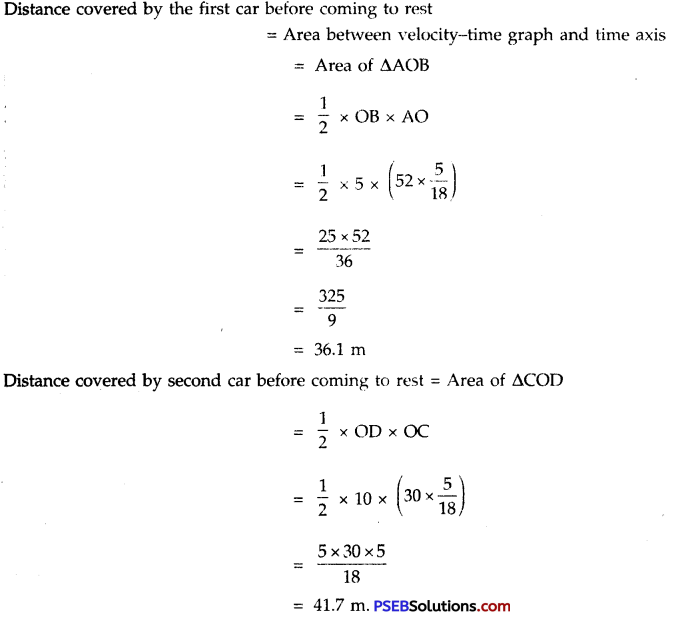
A driver of a car travelling at 52 kmh-1 applies the brakes and accelerates uniformly in opposite direction. The car stops in 5 s. Another driver going at 3 km h-1 applies his brakes slowly and stops in 10 s. On the same graph paper plot the speed versus time graph for the two cars. Which of the two cars travelled farther after the brakes were applied?
Solution:
In the figure AB and CD represent velocity-time graphs of two cars which have their speeds 52 kmh-1 and 30 kmh-1 respectively.
PSEB 9th Class Science Solutions Chapter 8 Motion 6
PSEB 9th Class Science Solutions Chapter 8 Motion 7
In this way, after applying brakes the second car would cover more distance than the first car.

Question 6.
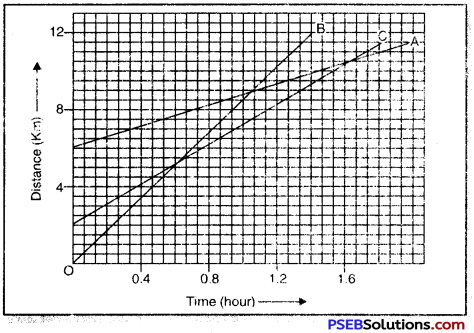
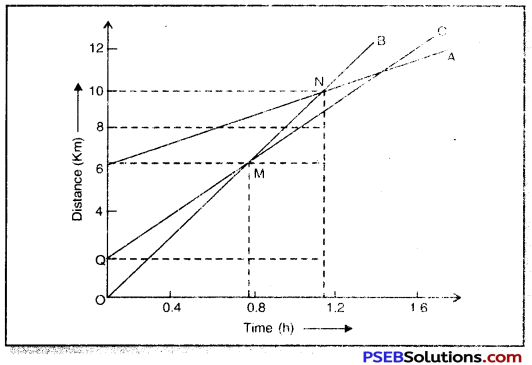
Fig shows the distance-time graphs of three objects A, B and C. Study the graph and answer the following questions:
PSEB 9th Class Science Solutions Chapter 8 Motion 8
(a) Which of the three is travelling the fastest?
(b) Are all three ever at the same point on the road?
(c) How far has C travelled when B passes A?
(d) How far has B travelled by the time it passes C?
Solution:
(a) Velocity of A = Slope of PN
\(\frac{10-6}{1.1-0}\)
\(\frac{40}{11}\) = 3.63 kmh-1
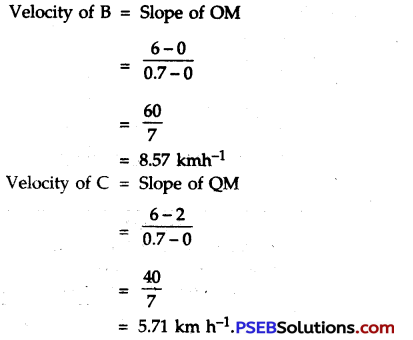
PSEB 9th Class Science Solutions Chapter 8 Motion 9
PSEB 9th Class Science Solutions Chapter 8 Motion 10
Because slope of object B is maximum of all therefore, it is moving fastest.
(b) Since all the three graphs do not intersect at any point therefore, all the three do not meet ever at the same point on the road.
(c) When the object B passes A at point E (at 1.4 hr) then at that time the object C will be at F i.e. 9.3 km away from the origin O.
(d) B passes C at G after covering 8 km.

PSEB 9th Class Science Solutions Chapter 8 Motion

Question 7.
A ball is gently dropped from a height of 20 m. If its velocity increases uniformly at the rate of 10 m s-2, with what velocity it will strike the ground?After what time will it strike the ground?
Solution:
u = 0 ms-1
S = 20 m
a = 10 ms-2
υ = ?
t = ?

Using υ2 – u2 = 2as
υ2 – (0)2 = 2 × 10 × 20
υ2 = 4000
∴ υ = \(\sqrt{400}\)
= \(\sqrt{20 \times 20}\)
= 20 m s-1
Now υ = u + at
20 = 0 + 10 × t
or t = \(\frac{20}{10}\)
∴ t = 2 s

Question 8.
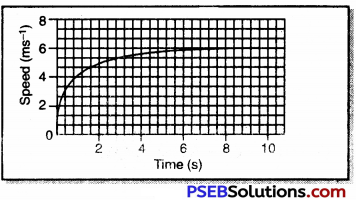
Speed-time graph for a car is shown in the fig.
PSEB 9th Class Science Solutions Chapter 8 Motion 11
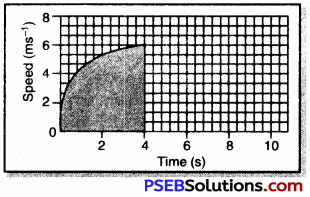
(a) Find how far the car travelled in first 4 s. Shade the area on the graph that represents the distance travelled by car during this period.
(b) Which part of the graph represents uniform motion of the car?
Solution:
PSEB 9th Class Science Solutions Chapter 8 Motion 12
(a) 5 small squares of x axis = 2s
3 small squares of y axis = 2 ms-1
Area of 15 small squares = 2s × 2 ms-1 = 4m
∴ Area of 1 small square = \(\frac{4}{15}\)
Area of velocity-time graph under 0 to 5s = 57 complete small squares + \(\frac{1}{2}\) × 6 small squares.
= (57 + 3) small squares
= 60 small squares.
Distance covered by car in 4 s = 60 × \(\frac{4}{15}\) m
= 16 m

(b) After 6 s the car has uniform motion.

Question 9.
State which of the following situations are possible and give an example for each of these.
(a) an object with a constant acceleration but with zero velocity.
(b) an object moving in a certain direction with an acceleration in the perpendicular direction.
Answer:
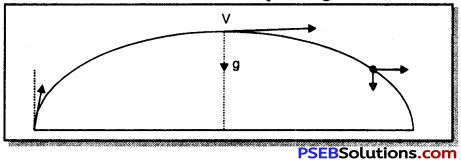
(a) Yes, this situation is possible.
Example: When an object is projected upwards, its velocity at the maximum height is zero although acceleration on it is 9.8 ms-2 i.e. equal to g.
PSEB 9th Class Science Solutions Chapter 8 Motion 13

(b) Yes, at the maximum height of projection the velocity is in the horizontal direction and its acceleration is perpendicular to the direction of motion as shown in figure.

Question 10.
An artificial satellite is moving in a circular path orbit of radius 42,250 km. Calculate its speed if it takes 24 hours to revolve around the earth.
Solution:
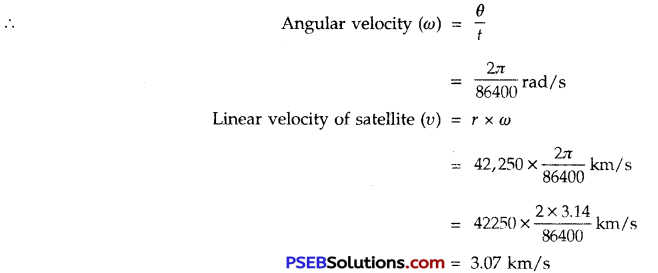
Radius of circular path of artificial satellite (r) = 42,250 km
Angle formed (subtended) at the centre of earth (θ) = 2π radian
Time taken by the satellite to complete 1 revolution (t) = 24hrs
= 24 × 3600s
= 86400 s
PSEB 9th Class Science Solutions Chapter 8 Motion 14

Science Guide for Class 9 PSEB Motion InText Questions and Answers

Question 1.
An object has moved through a distance. Can it have zero displacements? If yes,support your answer with an example.
Answer:
Yes, a body can have zero displacement, if fhis body While moving occupies its final position coinciding with its initial position.
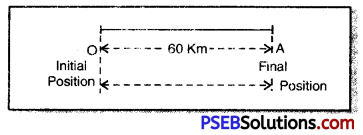
Example: Suppose a body starting its motion from initial position O covers some distance and reaches a position A. If this body while moving returns to its initial position O then in that situation its displacement will be zero.
PSEB 9th Class Science Solutions Chapter 8 Motion 15
But distance covered by the body = OA + AO
= 60 km + 60 km
= 120 km

PSEB 9th Class Science Solutions Chapter 8 Motion

Question 2.
A farmer moves along the boundary of a square field of side 10 m in 40 s. What will be the magnitude of displacement of the farmer at the end of 2 minutes 20 seconds?
Solution:
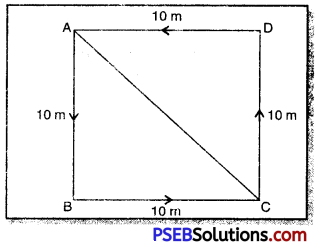
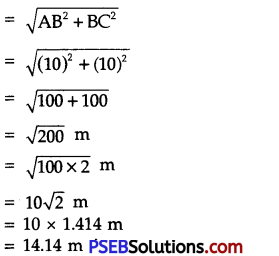
Total distance round the boundary of field once (i.e. circumference)
= AB + BC + CD + DA
= 10 m + 10 m + 10 m + 10 m = 40 m
Time taken to go round the field once = 40 s
PSEB 9th Class Science Solutions Chapter 8 Motion 16
Total time taken = 2minutes 20 seconds
= (2 × 60 + 20) seconds
= (120 + 20) seconds
= 140 seconds.
Time taken by fanner to complete 3 rounds of field = 3 × 40 s = 120 s
Time left after completing 3 rounds of field = (140 – 120)s = 20 s
∴ Distance covered by farmer in 40 s = 40 m
∴ Distance covered in 1 s = 1 m
Distance that would be covered in 20 s = 20 m
In other words farmer starting from point A and while going along the boundary of the field and after completing 3 rounds in 2 min 20 s would reach the point C.
∴ Displacement = AC
(the shortest distance between initial and final position)
PSEB 9th Class Science Solutions Chapter 8 Motion 17

Question 3.
Which of the following is true for displacement?
(a) It cannot be zero
(b) Its magnitude is greater than the distance travelled by the object.
(c) Its magnitude is less than or equal to distance travelled by the object.
Answer:
(c) Its magnitude is less than or equal to distance travelled by the object.

PSEB 9th Class Science Solutions Chapter 8 Motion

Question 4.
Distinguish between speed and velocity.
Answer:
Distinction between Speed and Velocity:

Speed Velocity
1. It is defined as the rate of a change of a position of a body i.e. the distance covered by a body per unit time. It is defined as the rate of change of displacement of a body. i.e. it is the speed in a particular direction.
2. It is a scalar quantity and can be completely represented by its magnitude only. It is a vector quantity. To represent it completely it requires both magnitude and direction.
3. Speed of an object is always positive. Velocity of an object can be both positive and negative.

Question 5.
Under what condition(s) is the magnitude of average velocity of an object is equal to its average speed?
Answer:
We know, Average speed = Total distance travelled / Total time taken
and Average velocity = Displacement /Total time
When a body travels in a straight line with variable motion in the same direction then total distance covered and displacement are equal in magnitude. In this case the average speed and average velocity are equal.

Question 6.
What does the odometer of an automobile measure?
Answer:
The odometer of an automobile measures the distance covered by it.

Question 7.
What does the path of an object look like when it is in uniform motion?
Answer:
When an object is in uniform motion, it moves along a straight line. But an object can also move with uniform motion along a circular path.

Question 8.
During an experiment, a signal from a spaceship reached the ground station in five minutes. What was the distance of the spaceship from the ground station?The signal travels at a speed of light that is 3 × 10s ms-1.
Solution:
Time taken by the signal to reach the ground station from spaceship (t) = 5 min = 5 × 60 s = 300 s
Speed of Signal (υ) = Speed of light = 3 × 10⁸ ms-1
Distance of the spaceship from earth (s) = ?
Distance of spaceship from ground (s) = speed of signal (υ) × Time (t)
= 3 × 108 × 300
= 3 × 108 × 3 × 102
= 9 × 108 × 102
= 9 × 10¹⁰ m

PSEB 9th Class Science Solutions Chapter 8 Motion

Question 9.
When will you say a body is in:
1. uniform acceleration?
2. non-uniform acceleration?
Answer:
1. Uniform Acceleration. When a body travels in a straight line and its velocity changes by equal amounts in equal intervals of time then it is said to travel with uniform acceleration.
2. Non-Uniform Acceleration. When the velocity of a body changes by unequal amounts in equal intervals of time then the body is said to travel with non-uniform acceleration.

Question 10.
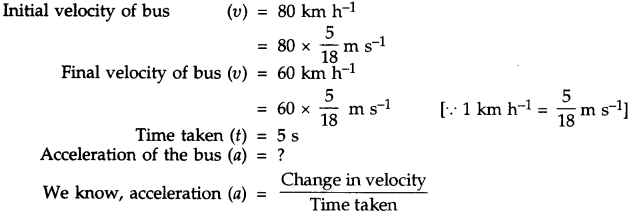
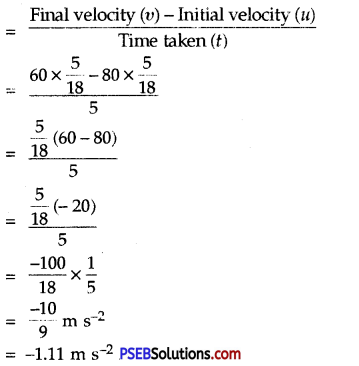
A bus decreases its speed from 80 km h-1 to 60 km h-1 in 5 s. Find the acceleration of the bus.
Solution:
PSEB 9th Class Science Solutions Chapter 8 Motion 18
PSEB 9th Class Science Solutions Chapter 8 Motion 19
Hence, the bus has negative acceleration (retardation).

Question 11.
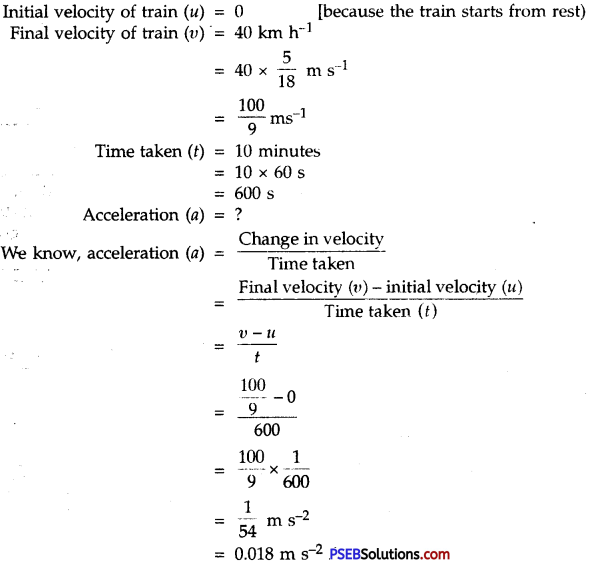
A train starting from a railway station and moving with uniform acceleration attains a speed 40 km h-1 in 10 minutes. Find its acceleration.
Solution:
PSEB 9th Class Science Solutions Chapter 8 Motion 20

PSEB 9th Class Science Solutions Chapter 8 Motion

Question 12.
What is the nature of the distance-time graphs (x – t) for uniform and non-uniform motion of an object?
Answer:
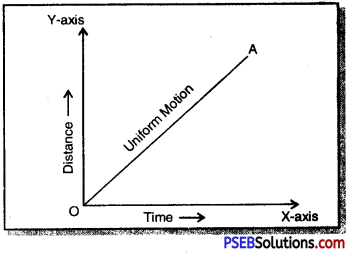
When a body covers equal distances in equal intervals of time, then it is said to travel with uniform motion. In this situation, the distance covered by the body is directly proportional to the time taken. Therefore, distance-time (x – t) graph for uniform motion is a straight line.
PSEB 9th Class Science Solutions Chapter 8 Motion 21
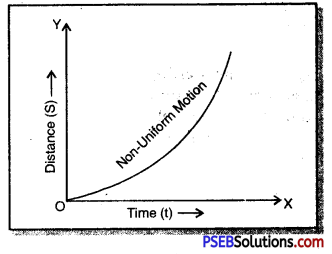
Distance – time (x – t) graph for non-uniform motion may be a curved graph of any shape because a body travels unequal distances in equal intervals of time.
PSEB 9th Class Science Solutions Chapter 8 Motion 22

Question 13.
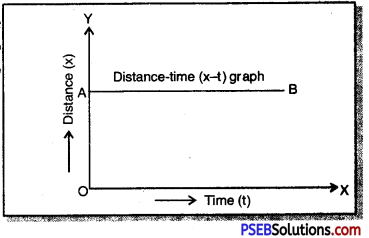
What can you say about the motion of object whose distance – time graph is a straight line parallel to time axis?
Answer:
PSEB 9th Class Science Solutions Chapter 8 Motion 23
The object whose distance-time (x – t) graph is a straight line parallel to the time axis will be at rest with respect to the surroundings.

Question 14.
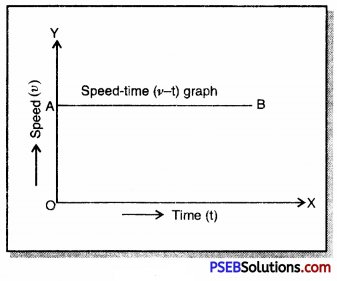
What can you say about the motion of an object if its speed-time graph is a straight line parallel to time axis?
Answer:
PSEB 9th Class Science Solutions Chapter 8 Motion 24
The object whose speed – time (u – t) graph is a straight line parallel to time axis shows that it is in motion with uniform speed.

PSEB 9th Class Science Solutions Chapter 8 Motion

Question 15.
What is the quantity which is measured by the area occupied below velocity-time graph?
Answer:
PSEB 9th Class Science Solutions Chapter 8 Motion 25
The area occupied below velocity-time graph measures displacement of the body.

Question 16.
A bus starting from rest moves with a uniform acceleration of 0.1 ms-2 for two minutes. Find (a) the speed acquired (b) the distance travelled.
Solution:
(a) Initial speed of the bus (u) = 0 (Starting from Rest)
Acceleration of the bus (a) = 0.1 m s-2
Time taken (t) = 2 minutes
= 2 × 60 s
= 120 s
Final speed of the bus (υ) = ?
Distance travelled by the bus (S) =?
We know, υ = u + at
υ = 0 + 0.1 × 120
υ = 1 × 12
υ = 12 ms-1

(b) Again, using S = ut + \(\frac{1}{2}\) at2
S = 0 × 120 + \(\frac{1}{2}\) × 0.1 × (120)2
= 0 + \(\frac{1}{2}\) × 0.1 × 120 × 120
= \(\frac{1}{2}\) × 1 × 12 × 120
= 720 m/s

Question 17.
A train is travelling at a speed of 90 km h-1. Brakes are applied so as to produce a uniform acceleration of -0.5 ms-2. Find how far the train will move before it is brought to rest?
Solution:
Initial speed of train (υ) = 90km h-1
= 90 × \(\frac{5}{18}\) m s-1
= 5 × 5 ms-1
= 25 ms-1
Uniform acceleration (a) = – 0.5m s-2
Final speed of the train (υ) = 0
Distance moved by the train (S) =?
We know, υ2 – u2 = 2as
(0)2 – (25)2 = 2 × (-0.5) × S
– 25 × 25 = -1 × S
∴ S = 625 m

PSEB 9th Class Science Solutions Chapter 8 Motion

Question 18.
A trolley, while going down an inclined plane has an acceleration of 2 cm s~2. What will be its velocity 3 s after the start?
Solution:
Here initial velocity of trolley (u) = 0 [∵ starting from rest]
Acceleration (a) = 2cm s-2
Time (t) = 3 s
Final velocity of trolley (υ ) = ?
We know, υ = u + at
υ = 0 + 2 × 3
∴ Final velocity of trolley (υ) = 6 cm s-1 Ans.

Question 19.
A racing car has uniform acceleration of 4 ms-2. What distance will it cover in 10 s after start?
Solution:
Acceleration of racing car (a) = 4 ms-2
Initial velocity of racing car (u) = 0
Time (t) = 10 s
Distance covered by the car (S) = ?
We know, S = ut + \(\frac{1}{2}\)at2
S = 0 × 10 + \(\frac{1}{2}\) × 4 × (10)2
S = 0 + 2 × 10 × 10
∴ Distance covered by racing car (S) = 200 m

Question 20.
A stone is thrown in a vertically upward direction with a velocity of 5 m s-1. If the acceleration of the stone during its motion is 10 m s-2 in the downw ard direction. What will be the height attained by the stone and how much time will it take to reach there?
Solution:
Here, initial velocity (u) = 5 m s-1
Acceleration (a) = – 10 ms-2
[∵ it moves upward against the gravity]
Final velocity of stone (υ) = 0 [At the highest point it is brought to rest]
Height attained (S = h) = ?
Time taken (t) =?
We know,
υ = u + at
0 = 5 + (-10) × t
0 = 5 – 10 × t
10 × t = 5
or t = \(\frac{5}{10}\)
∴ Time taken (t) = 0.5 s
Again, using υ2 – u2 = 2as
(0)2 – (5)2 = 2 × -10 × h
– 5 × 5 = – 20 × h
or h = \(\frac{-25}{-20}\) = \(\frac{5}{4}\)
∴ Height attained (h) – 1.25 m

PSEB 6th Class Computer Notes Chapter 4 Introduction to MS Paint

This PSEB 6th Class Computer Notes Chapter 4 Introduction to MS Paint will help you in revision during exams.

PSEB 6th Class Computer Notes Chapter 4 Introduction to MS Paint

Introduction:
MS Paint or Microsoft paint is an application software. This software is used to draw objects and shapes. The user can work with colours in this software. The drawings can be saved and printed. The drawing can also be used in other application software such as Microsoft Word, Microsoft PowerPoint.

What is MS Paint?
It is an application software developed by Microsoft. This software is provided by a company with Microsoft Windows operating system. It is the default software which is used to develop non commercial paintings. There are many different tools available in Paint. This software is very helpful for new users and children. The user can draw paintings in colour or black and white. This painting can be saved as bitmap files or other format. These paintings can also be printed on paper using a colour printer. These paintings can be set as wallpaper on the computer. These paintings can also be pasted in other applications like MS Word and MS PowerPoint. Save its painting in various formats such as JPG, GIF, BMP etc.

How to Start MS Paint?
PSEB 6th Class Computer Notes Chapter 4 Introduction to MS Paint 1
Or

  • Click on the start button on taskbar/ super bar. The Start menu will appear.
  • Click on All Programs, another menu will appear.
  • Click on the Accessories option in this menu. Another menu will appear. This menu has a Paint option.
  • Click on the Paint option.
    Or
  • Click on the start button and type “Paint” in the search bar. Click the Icon from the list and press enter key. Paint window will appear.

PSEB 6th Class Computer Notes Chapter 4 Introduction to MS Paint 2

Parts of a Paint Window
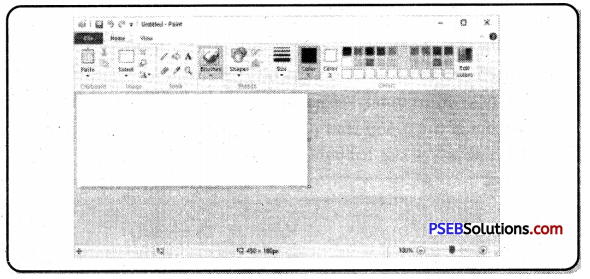
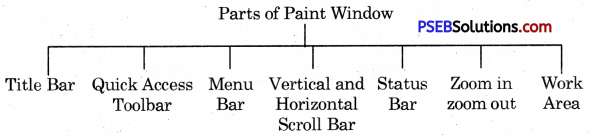
Paint window is shown in above figure. It has following main parts:
PSEB 6th Class Computer Notes Chapter 4 Introduction to MS Paint 3
1. Title Bar: The title bar is present at the top of the paint window. At the left end of the title bar, the first item shown is a little paint palette. If we click this button, a standard window menu opens having options Restore, Move, Size, Minimize, Maximize and Close. Another thing we will see the title of our picture followed by the name of the program-Paint. If we haven’t saved our picture, the name will be shown as “Untitled”.

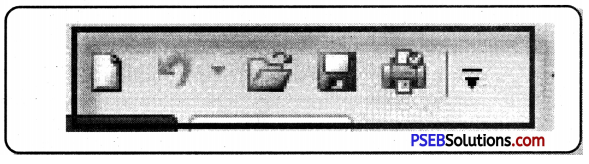
  • Quick Access Toolbar: The next four items make up the Quick Access Bar offering buttons for Save, Undo, Redo and Customize.
  • Minimize, Maximize/Restore, Close: Title bar has three buttons on its right corner. They are:
    (a) Minimize Button: Used for minimizing the paint window onto the taskbar.
    (b) Maximize/Restore button: Used for maximizing or restoring the paint window.
    (c) Close Button: Used for closing the paint window.

2. Quick Access Toolbar: It is a toolbar present in the title bar by default. This bar provides us with frequently used commands. Its position can be changed both to below or above the ribbon and icons can be added and removed as per the user’s requirement.

PSEB 6th Class Computer Notes Chapter 4 Introduction to MS Paint

To Move Quick Access Toolbar below the Ribbon:
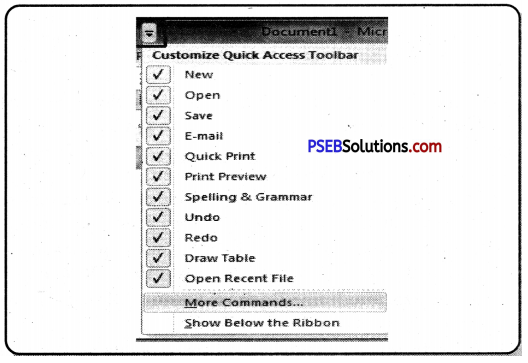
If we prefer to show Save, Undo and Redo buttons below the ribbon, Click on the “customize quick access bar” button and a menu will appear. Near the bottom of the menu that appears, we will see Show below the Ribbon. Click Show below the Ribbon.
PSEB 6th Class Computer Notes Chapter 4 Introduction to MS Paint 4
The Quick Access Toolbar will move below the Ribbon. We can add more options such as New, Open, and Print Preview etc. to the Quick Access Toolbar with the help of Customize icon.
PSEB 6th Class Computer Notes Chapter 4 Introduction to MS Paint 5
Move Quick Access Toolbar below the Ribbon

Here are commands and their functions discussed below:

Name of Command Function Shortcut Key
New Creates a new/blank image file. Ctrl + N
Open Opens a dialog box to open an existing image file. Ctrl + 0
Save Saves changes to the current file. Ctrl + S
Print Print the current picture. Ctrl + P
Print Preview Displays the image on screen as it will appear after printing on paper.
Send in e-mail Send a copy of the picture in an e-mail as an attachment.
Undo Repeat or Reverse the last action. Ctrl + Z
Redo Restores previous undo action. Ctrl + Y
Show below/ above the ribbon Shows Quick Access Toolbar below or above the ribbon
Minimize the ribbon Toggle the ribbon On/Off.

Adding Ribbon items to the Quick Access Toolbar: Many other items from the ribbon can also be added to the Quick Access Toolbar. On the Ribbon, right click on anything we like to add. A menu will appear which includes the option “Add to Quick Access Toolbar”. Click on this option.

Menu Bar
The Menu bar has three tabs named as Paint Button, Home tab ribbon and View tab ribbon. On the right side of the menu bar, the Help button appears as shown in the figure below.
PSEB 6th Class Computer Notes Chapter 4 Introduction to MS Paint 6

1. Paint Button: This Button appeared at the beginning of Menu bar. When we click on this button and the following Menu Appears.
PSEB 6th Class Computer Notes Chapter 4 Introduction to MS Paint 7
The various commands given in Paint button are explained below:

Name of Command Functions
Save As Save changes to the new file with a different file name. It asks for a new name every time. We can change format of the new file too. Such as PNG, JPEG, BMP, GIF etc.
From scanner and camera Import picture from scanner or camera.
Set as desktop background Set the current picture as our desktop background.
Properties Change the properties of the picture. The Properties dialog will give us information about the picture .
Exit To close the paint window.

2. Home Tab Ribbon: All tools, shapes, colour palette and most of the commands are grouped together in the ribbon except Save, Undo and Redo commands which are shown at title bar or in the Quick Access Toolbar. Drop-down arrows below each item in the ribbon will give us other options for the tool. Most of the tools used for drawing or other tasks are present in Home Tab Ribbon.
PSEB 6th Class Computer Notes Chapter 4 Introduction to MS Paint 8

There is also an option to minimize the ribbon. If we choose this, the ribbon d sappears entirely, but pops into view if you click on the Home tab.

3. View Tab Ribbon: We can use the View tab by clicking on it. The options such as zoom in, zoom out, show or hide and display are there in the View tab. Zoom in or out can be used alone or in conjunction with the Zoom Tool. We can also use the status bar for Zoom in or Zoom out purposes.

PSEB 6th Class Computer Notes Chapter 4 Introduction to MS Paint

Scroll Bar
Scroll bars are used to move the screen. These are of two types:

  • Horizontal Scroll bar: It is present at the bottom of the Paint window. It moves the screen left and right.
  • Vertical Scroll bar: It is present at the right side of the Paint window. It moves the screen up and down.

Status Bar
PSEB 6th Class Computer Notes Chapter 4 Introduction to MS Paint 9
1. Cursor Position: It gives the Cursor Position, which is helpful when we want to position any picture precisely.
PSEB 6th Class Computer Notes Chapter 4 Introduction to MS Paint 10

2. Selection Size: It shows the size of a selection we are making or size of an object we are drawing.
PSEB 6th Class Computer Notes Chapter 4 Introduction to MS Paint 11

3. Image Size: It shows the size of our entire picture, even if the picture is very large and is not visible completely in the window. If we have not changed the units in the Properties dialog box, the measurement will be displayed in pixels. We can change measurement to inches or centimetres.

4. Disk Size: Once we have saved our picture, this option will show the size or drawing on Disk. If the paint window is very small, this figure might not be shown.

5. Zoom Slider: The Zoom Slider is convenient if we are working in a zoomed in view and want to zoom out. However, we cannot zoom in on a particular spot, as we can do with the Magnifier.

Work Area
Free space of the Paint window is called the work area. It is used for making drawings. This area is usually between Ribbon and status bar.

Saving Our Drawing
It is good to save our picture as soon as we begin to work. We must click on the Save button on the Quick Access Toolbar every few minutes. This prevents loss of work if the program closes unexpectedly, as in a power failure.
PSEB 6th Class Computer Notes Chapter 4 Introduction to MS Paint 12

When we click the Save for the first time, we will find a dialog box where we have to type a name for the picture. Type a desired name in the file name text box and click the Save button.

Save as:
PSEB 6th Class Computer Notes Chapter 4 Introduction to MS Paint 13
Click Save as in file menu.
With the help of Save as option we can save a Copy of a picture with another file name. Go to the Paint button and open the menu.
In the dialog box, just change the existing name then click the Save button.